Is your JBL speaker acting up? Maybe it won’t connect to your devices, the sound is distorted, or it’s just not working right. A quick reset might be all you need to solve these problems. Resetting a JBL speaker typically involves pressing a combination of buttons like Volume Up and Play for about 10-15 seconds until the device powers off and restarts.
Different JBL models have slightly different reset methods. For instance, the JBL Charge 3 requires holding the Volume+ and Play/Pause buttons simultaneously, while the JBL Playlist needs you to press the Play and Volume- buttons together. Most portable JBL speakers follow a similar pattern, making troubleshooting straightforward even if you own multiple models.
Performing a factory reset clears all paired devices and returns your speaker to its original settings. This process often resolves common issues like Bluetooth connectivity problems and audio glitches without requiring technical expertise or customer support intervention.
How to Reset a JBL Speaker
Resetting a JBL speaker can fix many common problems, such as Bluetooth connection issues, audio glitches, or pairing errors. While the exact steps may vary slightly depending on the model, most JBL Bluetooth speakers follow similar reset methods. This guide walks you through the most common ways to reset a JBL speaker and what to do if it doesn’t work.
When Should You Reset a JBL Speaker?
You may want to reset your JBL speaker if:
- It won’t connect to Bluetooth
- It keeps disconnecting or pairing with the wrong device
- There’s no sound or distorted audio
- You want to clear all paired devices
A reset restores the speaker to factory settings.
Standard Reset Method (Most JBL Bluetooth Speakers)
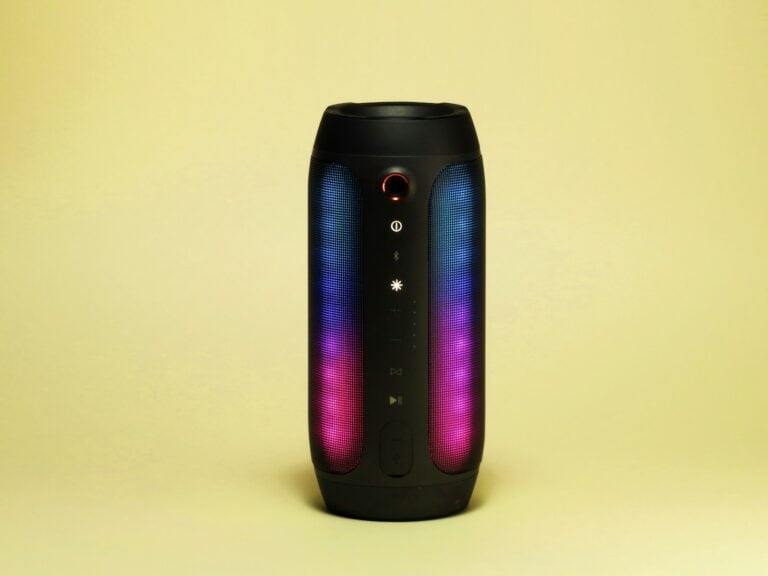
This method works for many popular models like JBL Flip, Charge, Pulse, Clip, and Xtreme.
- Turn on your JBL speaker.
- Press and hold the Volume Up (+) and Play/Pause buttons at the same time.
- Keep holding for 5–10 seconds.
- Release the buttons when the speaker powers off or you hear a confirmation sound.
- Turn the speaker back on.
The speaker is now reset and ready to pair like new.
Reset Method for JBL Go and JBL Clip (Older Models)
Some smaller or older models use a slightly different button combination.
- Turn the speaker on.
- Press and hold the Volume Up (+) and Bluetooth buttons together.
- Hold for about 5–10 seconds until the speaker turns off.
- Power the speaker back on.
Reset JBL PartyBox Speakers
For JBL PartyBox models, the reset process may vary.
- Turn on the PartyBox speaker.
- Press and hold the Bluetooth and Volume Up (+) buttons at the same time.
- Hold until the speaker restarts or shuts off.
- Turn it back on and reconnect your device.
How to Reconnect After Reset
After resetting your JBL speaker:
- Turn the speaker on.
- Enable Bluetooth on your phone, tablet, or computer.
- Find your JBL speaker in the list of available devices.
- Tap to pair.
The speaker should now connect normally.
If Reset Doesn’t Work
If your JBL speaker still has issues after resetting:
- Make sure the speaker is fully charged.
- Forget the speaker on your phone:
- Go to Bluetooth settings
- Tap the JBL speaker name
- Select Forget or Unpair, then reconnect.
- Try pairing with a different device.
- Check for firmware updates using the JBL Portable app (if supported).
Factory Reset vs. Hard Reset
- Factory reset clears all paired devices and settings.
- Hard reset (power cycling) simply involves turning the speaker off and on.
If problems persist, always try a factory reset first.
Final Thoughts
Resetting a JBL speaker is quick and often solves common Bluetooth and sound issues. Since button combinations can differ slightly by model, check your user manual if the standard method doesn’t work. Once reset, your speaker should behave like new and be ready to reconnect.
Key Takeaways
- JBL speakers can be reset by holding specific button combinations for 10-15 seconds until the device restarts.
- Different JBL models have unique reset procedures, but most involve some combination of volume and playback buttons.
- Resetting returns your speaker to factory settings, clearing paired devices and resolving common connectivity and audio issues.
Understanding the Need for Resetting Your JBL Speaker
Resetting a JBL speaker can solve many common problems and restore functionality when your device isn’t performing as expected. This process clears temporary glitches and returns the speaker to its original state.
Common Scenarios Requiring a Reset
JBL speakers sometimes experience connectivity issues that prevent them from pairing with devices. If your speaker won’t connect to Bluetooth after several attempts, a reset can often fix this problem.
Battery-related issues are another common reason for resets. When a JBL speaker doesn’t charge properly or turns off unexpectedly, resetting can help restore normal power functions.
Some users encounter sound problems like distortion, audio cutting out, or no sound at all. These issues often stem from software glitches that a reset can resolve.
Unresponsive buttons are frustrating but fixable. If the power or volume controls won’t work, a reset might fix these control issues.
When a speaker freezes completely and won’t turn on or off, this indicates a need for a reset. Some JBL models like the Charge 4 may need specific reset procedures when they become unresponsive.
Benefits of Resetting to Factory Settings
Returning to factory default settings clears all customized preferences and accumulated data that might cause conflicts. This gives your speaker a fresh start.
Resetting eliminates software bugs that develop over time. These small programming errors can accumulate and affect performance, but a factory reset wipes them clean.
The troubleshooting process becomes much simpler after a reset. By starting from default settings, you can isolate whether problems are hardware or user-related.
Connection problems often disappear after a reset, as the speaker forgets problematic device pairings and connection histories. This improves the overall user experience when reconnecting to your devices.
Battery performance frequently improves following a reset, as power management settings return to their optimized factory configuration. This can extend playtime between charges.
Preparing to Reset Your JBL Speaker
Before attempting to reset your JBL speaker, it’s important to check a few things to ensure the process goes smoothly. Proper preparation can help avoid complications and ensure your reset is successful.
Checking the Speaker’s Battery Level
First, make sure your JBL speaker has sufficient battery power before starting the reset process. A low battery may interrupt the reset procedure and could potentially cause issues.
To check the battery level on most JBL speakers:
- Look for the battery indicator lights typically located on the speaker
- Press the power button to see the battery status lights
- Some models display battery level when first powered on
- Connect to the JBL app if available to see precise battery percentage
If the battery level is low (usually indicated by a red light or single blinking light), charge your speaker for at least 15-30 minutes before attempting to reset it. This ensures there’s enough power to complete the reset process without interruption.
Ensuring Connectivity and Accessibility
Before resetting, check the speaker’s current connectivity status and ensure you can access all necessary buttons for the reset procedure.
Make sure you:
- Know the current Bluetooth pairing status (which devices it’s connected to)
- Have access to all physical buttons needed for reset (particularly volume, play/pause, and Bluetooth buttons)
- Have removed any protective cases that might block button access
- Place the speaker on a stable surface where you can easily hold multiple buttons simultaneously
It’s also helpful to check if your speaker is currently functioning properly in other aspects. This helps determine if a reset is actually needed or if there might be another issue. Note which specific problems you’re experiencing so you can verify if they’re resolved after the reset.
Step-by-Step Guide to Reset Your JBL Speaker
Resetting a JBL speaker can solve many common issues like connection problems or unresponsive controls. The process is straightforward but varies slightly depending on your specific JBL model.
Locating the Reset Function
JBL speakers don’t typically have a dedicated reset button. Instead, they use a combination of existing buttons to trigger the reset function. For most JBL portable speakers, the reset controls are located on the top or side panel where the volume and playback buttons are situated.
On popular models like the JBL Flip 5, the reset function combines the Volume Up and Play buttons. The JBL Charge models use a similar button combination.
For the JBL Playlist speaker, the reset buttons are the Play and Volume Down (-) buttons. It’s important to identify your specific model before attempting a reset to ensure you’re using the correct button combination.
Always make sure your speaker is powered on before attempting any reset procedure.
Using the Play/Pause Button for Reset
To perform a factory reset on most JBL portable speakers:
- Power on your JBL speaker
- Locate the Play button (often marked with a triangle or play symbol)
- Find the Volume + button (usually marked with a plus sign)
- Press and hold both buttons simultaneously for approximately 3-10 seconds
For the JBL Flip 5 and similar models, hold the buttons until the speaker powers off automatically. This indicates the reset process has begun.
For the JBL Playlist, press and hold the Play and Volume (-) buttons simultaneously for about 10 seconds. The reset begins after this time period.
Don’t release the buttons too early, as this will cancel the reset process.
Confirmation of Successful Reset
A successful reset will typically be indicated by the speaker powering off completely. After a few moments, you can power the speaker back on, and it will be in its factory default state.
When you turn it on again, the speaker should enter Bluetooth pairing mode automatically, indicated by a flashing blue light or a specific sound prompt depending on your model.
Following a successful reset:
- All paired devices will be forgotten
- Custom settings will return to defaults
- Any firmware issues should be resolved
If the speaker doesn’t respond after the reset attempt, try charging it fully before attempting another reset. Sometimes low battery can interfere with the reset process.
If problems persist after multiple reset attempts, contact JBL customer support as there may be a hardware issue requiring professional attention.
Post-Reset Actions for Optimal Performance
After resetting your JBL speaker, some additional steps are needed to get the best sound quality and functionality. These adjustments ensure your device works smoothly and delivers optimal audio performance.
Re-establishing Bluetooth Pairings
Once you’ve completed a factory reset of your JBL speaker, it will no longer recognize previously paired devices. To reconnect:
- Turn on the speaker
- Press and hold the Bluetooth button until it flashes blue
- Open Bluetooth settings on your device (phone, tablet, computer)
- Select the JBL speaker from the available devices list
- Wait for confirmation tone or light indicating successful pairing
For multiple device connections, repeat this process with each device. Some JBL models can remember up to 8 paired devices, but only connect to one at a time.
Pairing problems can sometimes occur after reset. If this happens, users should ensure their device’s Bluetooth is turned on and they are within range (typically 30 feet) of the speaker.
Adjusting Volume and Other Settings
After reset, all settings return to their default configuration. The Volume+ button will need to be adjusted to preferred levels.
For optimal sound quality:
- Set initial volume at 50-60% on both the source device and speaker
- Adjust bass and treble settings if available on your JBL model
- Test audio in the environment where you’ll be using it most
Some JBL models feature companion apps that offer additional customization. Users should download the appropriate JBL app to access:
- Custom EQ settings
- Firmware updates
- Battery level indicators
- Party mode or stereo pairing options
For outdoor use, position the speaker away from walls for better sound distribution. Indoor use benefits from placement near walls to enhance bass response while maintaining clear mids and highs.
Troubleshooting Post-Reset Issues
After resetting your JBL speaker, you might encounter a few common issues that prevent the full restoration of functionality. Addressing these problems promptly will help ensure your speaker returns to optimal performance.
Dealing With Connectivity Problems
If your JBL speaker won’t connect to devices after a reset, first ensure Bluetooth is enabled on both your speaker and device. Try removing the speaker from your device’s paired list and attempting to pair again from scratch.
Sometimes the speaker might appear in the device list but won’t connect. In this case, users should:
- Restart both the speaker and connecting device
- Move the devices closer together (within 30 feet)
- Check if another device is currently connected to the speaker
- Ensure the speaker has sufficient battery charge
For persistent issues, try a second reset attempt as the first one may not have fully restored factory settings. Some JBL models require specific button combinations for a complete reset.
Addressing Audio Quality Concerns
Post-reset audio problems typically manifest as distortion, low volume, or imbalanced sound. First, ensure volume levels are properly adjusted on both the speaker and connected device.
Audio quality issues can often be resolved by:
- Checking for physical debris in speaker grilles
- Testing with different music sources to rule out file quality problems
- Adjusting EQ settings if your JBL model supports them
- Updating the speaker’s firmware if available
For bass-related concerns, place the speaker on a solid surface rather than soft materials that absorb vibrations. If distortion occurs at high volumes, try reducing the volume slightly as this may indicate the speaker is being pushed beyond its capabilities.
Battery drain affecting sound quality is also common after resets. A full charge cycle may help calibrate the battery and restore proper audio performance.
Maintaining Your JBL Speaker Post-Reset
After resetting your JBL speaker, proper maintenance ensures optimal performance and extends its lifespan. Regular software updates and proper physical care keep your device functioning at its best while understanding all available features maximizes your listening experience.
Regular Updates and Care
JBL speakers require consistent maintenance to deliver quality sound. Update your speaker’s firmware whenever new versions become available through the JBL app to fix bugs and enhance functionality.
Clean the speaker gently with a soft, slightly damp cloth, avoiding harsh chemicals that might damage the exterior. Pay special attention to the mesh grille where dust often accumulates.
Keep the speaker away from extreme temperatures and direct sunlight. Heat can degrade battery performance over time, while moisture may cause internal damage.
Check charging ports regularly for dust or debris that might interfere with proper charging. Use a soft brush or compressed air to clean these areas if necessary.
Store your speaker in a protective case when not in use, especially during travel, to prevent accidental damage.
Understanding and Using JBL’s Features
JBL speakers offer numerous features beyond basic playback that enhance the user experience. Bluetooth pairing settings should be managed properly—remove unused devices from the pairing list to maintain quick connections.
Battery conservation is essential for portable models. Enable auto-shutdown features through the JBL app to preserve battery when the speaker isn’t in use.
Many JBL models include Party Boost or Connect+ capabilities that allow multiple speakers to sync together. Experiment with these settings for different listening environments.
The JBL app provides customizable EQ settings to tailor sound to personal preferences. Create different profiles for various music genres or listening environments.
Voice assistant integration requires periodic review of permissions and settings to ensure privacy and functionality remain optimal after a reset.
Legal and Privacy Considerations
When resetting your JBL speaker, it’s important to understand the related privacy implications. Restoring factory settings will remove personal data and paired devices, which can help protect your information if you plan to sell or transfer the device.
Site Traffic Analysis and Cookie Policy
JBL’s official support website uses cookies to analyze site traffic and improve user experience when you visit their reset guides and support pages. These cookies collect information about how you interact with reset instructions and troubleshooting content.
The company’s Cookie Policy typically allows them to gather data about which reset methods users access most frequently. This helps JBL improve their support documentation and identify common issues with their speakers.
Before performing a factory reset, users should be aware that this process will disconnect the speaker from JBL’s companion apps, which may also store user preferences and data. The apps themselves may continue to store information unless separately cleared from your mobile device.
For privacy-conscious users, performing a factory reset before selling or giving away a JBL speaker is strongly recommended to remove all personal information and paired device history.
Frequently Asked Questions
JBL speakers sometimes need to be reset to fix various issues. Here are answers to common questions about resetting different JBL speaker models.
What are the steps to perform a factory reset on a JBL Flip 5 speaker?
To factory reset a JBL Flip 5 speaker, first ensure the speaker is powered on. Press and hold the “Volume Up” and “Play” buttons simultaneously for about 5-8 seconds.
The speaker will power off and then restart automatically. This indicates the reset has been completed successfully. All previous Bluetooth pairings will be cleared from the device’s memory.
How can I reset the Bluetooth connection on my JBL speaker?
To reset only the Bluetooth connection on most JBL speakers, press and hold the Bluetooth button for about 3 seconds until you hear a tone. This puts the speaker into pairing mode.
For more stubborn connection issues, you might need to perform a full factory reset using the model-specific button combinations. This will completely clear all paired devices from the speaker’s memory.
Is there a way to reset a JBL Charge 4 speaker if the power button is unresponsive?
If the power button on your JBL Charge 4 is unresponsive, try a hard reset by pressing and holding the “Volume Down” and “Play” buttons together for about 10 seconds.
If that doesn’t work, try connecting the speaker to a power source and leaving it to charge for at least 30 minutes. Then attempt the reset procedure again.
In cases where the speaker remains unresponsive, the battery might need replacement or the device may require professional service.
What is the procedure to reset a JBL GO 2 speaker to its original settings?
To reset a JBL GO 2 speaker to factory settings, turn on the speaker and simultaneously press and hold the “Volume Up” and “Play” buttons for about 5 seconds.
The speaker will power off and then restart automatically. Once it powers back on, the reset is complete. This process will clear all paired devices and restore default settings.
If these steps don’t work, try an alternative method by pressing the “Volume Down” and “Power” buttons together for 10-15 seconds until the device restarts.
How do I restore factory settings on a JBL Party Box speaker?
To restore factory settings on a JBL Party Box speaker, first make sure the speaker is powered on. Press and hold both the “Volume Down” and “Bass Boost” buttons simultaneously for approximately 10 seconds.
The LED lights will flash to indicate that the reset is in progress. The speaker will then power off and restart automatically. Once it powers back on, the factory reset is complete.
This process will clear all saved settings including Bluetooth pairings, EQ settings, and any custom configurations.
What are the instructions to reset a JBL Flip 6 speaker?
To reset a JBL Flip 6 speaker, power on the device first. Then press and hold both the “Play” button and “Volume Up” button simultaneously for about 5-8 seconds.
The speaker will shut down and restart automatically. This indicates the reset has been completed successfully. All previous device pairings and settings will be cleared.
For persistent issues, you might try an alternative reset method by pressing the Bluetooth button and Play button together until the power cycles.