Switching from Android to iPhone has become easier with Apple’s iOS Setup Assistant and Move to iOS app. These tools simplify the process of transferring data between devices. The Move to iOS app allows users to transfer contacts, messages, photos, videos, and other content from their Android device to a new iPhone seamlessly.
The transfer process begins during the initial setup of the new iPhone. Users can choose to move data from Android when prompted. On the Android device, they need to download the Move to iOS app from the Google Play Store. The app guides users through the steps to connect both devices and select the content they want to transfer.
Apple’s approach to data migration ensures a smooth transition for users switching ecosystems. The process is designed to be user-friendly, requiring minimal technical knowledge. This makes it accessible to a wide range of users, from tech-savvy individuals to those less familiar with mobile technology.
Using iOS Setup Assistant to Move Data from Android
Switching from Android to iPhone doesn’t have to mean starting over. Apple’s iOS Setup Assistant, together with the Move to iOS app, makes it easy to transfer your data securely during the initial iPhone setup.
This guide explains how to move data from Android to iPhone using iOS Setup Assistant, what gets transferred, and how to avoid common issues.
What You’ll Need Before You Start
Before beginning the transfer, make sure you have:
- ✅ A new or factory‑reset iPhone
- ✅ Your Android phone (Android 5.0 or later recommended)
- ✅ A stable Wi‑Fi connection
- ✅ Both devices plugged in or charged
- ✅ The Move to iOS app installed on Android
(Available on Google Play)
⚠️ You can only use this method during iPhone setup. If your iPhone is already set up, you’ll need to erase it to use Setup Assistant.
What Data Can Be Transferred?
Using iOS Setup Assistant and Move to iOS, you can transfer:
- Contacts
- Message history (SMS/MMS)
- Photos and videos
- Web bookmarks
- Mail accounts
- Calendars
- WhatsApp chat history (supported regions and versions)
- Free apps that exist on both Google Play and the App Store
❌ Music, paid apps, and some app‑specific data may need to be transferred manually.
Step‑by‑Step: Move Data from Android to iPhone
Step 1: Start iPhone Setup
- Turn on your new or reset iPhone
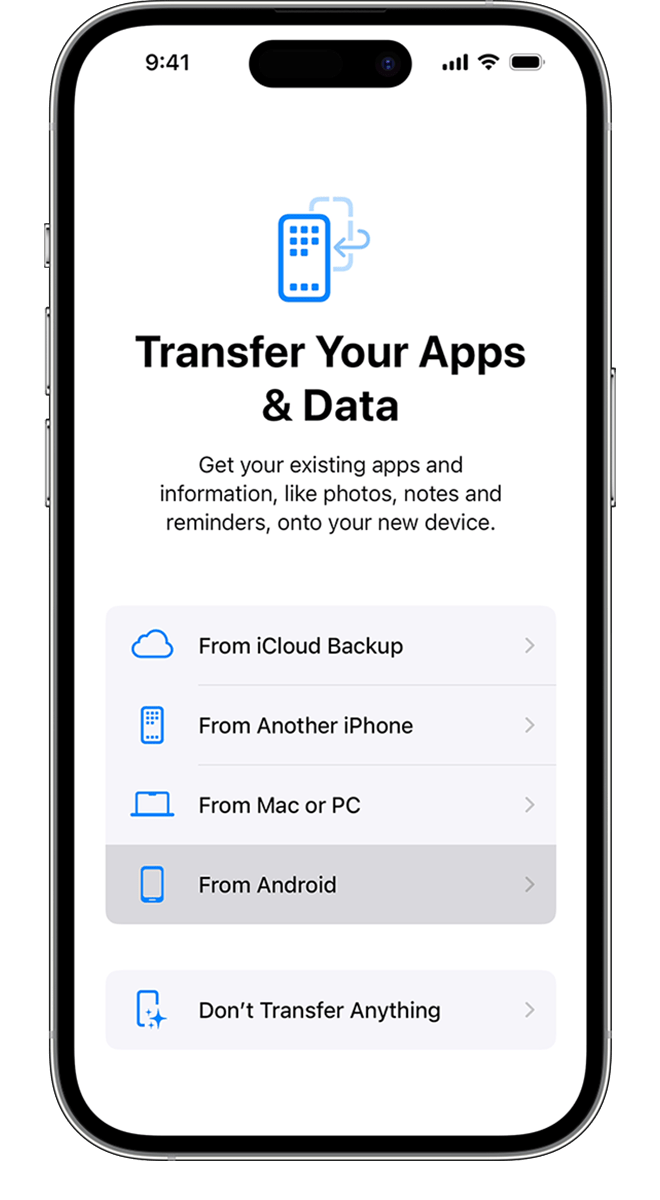
- Follow the setup prompts until you reach Apps & Data
- Tap Move Data from Android
Step 2: Prepare Your Android Device
- Open Google Play Store
- Install Move to iOS
- Open the app and accept permissions
- Tap Continue
Step 3: Connect the Devices
- On your iPhone, tap Continue
- A one‑time code will appear
- Enter this code on your Android device
Your Android phone will connect directly to your iPhone over a private Wi‑Fi network.
Step 4: Choose What to Transfer
On your Android phone:
- Select the content you want to move
- Tap Continue
- Leave both devices alone while the transfer runs
⏳ Transfer time depends on how much data you’re moving.
Step 5: Complete iPhone Setup
Once the transfer finishes:
- Continue iPhone setup on the iPhone
- Sign in with your Apple ID
- Download transferred apps from the App Store
- Check your data (contacts, photos, messages)
Tips for a Smooth Transfer
- 🔌 Keep both devices plugged in
- 📶 Use strong Wi‑Fi and avoid switching networks
- 📱 Don’t use either phone during transfer
- 🔄 Disable Smart Network Switch / Adaptive Wi‑Fi on Android
- 🔕 Turn off background apps that may interrupt the process
Troubleshooting Common Problems
Transfer Stuck or Fails
- Restart both devices
- Reset network settings on Android
- Try the transfer again
- Make sure VPNs are disabled
Messages or Photos Missing
- Confirm you selected those data types
- Wait for iCloud syncing to finish
- Check iCloud.com or the Photos app later
Already Set Up iPhone?
If your iPhone is already set up:
- Go to Settings → General → Transfer or Reset iPhone
- Tap Erase All Content and Settings
- Restart setup and choose Move Data from Android
⚠️ Back up your iPhone first if you have important data.
After the Transfer: What to Do Next
- Sign in to your apps
- Re‑download music and media
- Set up iCloud backup
- Customize iOS settings
- Enable Find My iPhone
Final Thoughts
Using iOS Setup Assistant to move data from Android is the easiest and safest way to switch to iPhone. With the Move to iOS app and a bit of preparation, most users can complete the transfer in under an hour.
Key Takeaways
- Move to iOS app transfers data from Android to iPhone during initial setup
- The app transfers contacts, messages, photos, and other content wirelessly
- Apple’s process is designed to be user-friendly and accessible to all skill levels
Preparing Your Devices
Proper preparation ensures a smooth data transfer from Android to iOS. This involves meeting specific requirements and ensuring both devices are ready for the process.
Requirements for Transfer
To begin, you need an Android device running Android 4.0 or later and an iOS device with iOS 9 or newer. Both devices must have Wi-Fi enabled and be connected to the same network. The Android device should have the “Move to iOS” app installed from the Google Play Store. For the iOS device, make sure it’s either new or recently factory reset.
Disable any VPNs or private DNS settings on the Android device. Remove the SIM card from the Android phone if you plan to use it in the new iPhone. Check that you have enough storage space on the iPhone to accommodate the data from your Android device.
Charging Devices
Ensure both devices have sufficient battery life. Ideally, charge them to at least 50% before starting the transfer process. This prevents interruptions during data migration, which can take several minutes to hours depending on the amount of data.
Connect both devices to power sources if possible. This step is crucial for larger transfers that may take longer. A stable power supply prevents unexpected shutdowns and data loss during the transfer.
Using the Move to iOS App
The Move to iOS app simplifies data transfer from Android to iPhone. This tool transfers contacts, calendar events, photos, videos, and message history wirelessly.
Installing the App on Android
The Move to iOS app is available on the Google Play Store. Users should open the Play Store on their Android device and search for “Move to iOS”. Tap the Install button to download and install the app. After installation, users can open the app by tapping the icon on their home screen or app drawer.
The app requires no sign-in or account creation. It’s designed for one-time use during the iPhone setup process. Users should ensure their Android device has enough battery life and is connected to Wi-Fi before starting the transfer.
Connecting to a Temporary Wi-Fi Network
When users start the Move to iOS app, it creates a private Wi-Fi network. This network connects the Android device to the new iPhone securely. On the iPhone, users should proceed through the setup process until they reach the “Apps & Data” screen.
Select “Move Data from Android” on the iPhone. The iPhone will display a code. Enter this code on the Android device when prompted. This step pairs the two devices for data transfer. The temporary Wi-Fi network ensures a fast and secure transfer of personal data between the phones.
Transferring Information
The iOS Setup Assistant streamlines data migration from Android devices to iPhones. This process allows users to transfer various types of content and accounts seamlessly.
Choosing Data to Transfer
The Move to iOS app lets users select specific data types for transfer. Users can move contacts, message history, photos, videos, and calendars. The app also transfers bookmarks, email accounts, and some free apps if available on both platforms.
Users should ensure their Android device has enough battery life and is connected to Wi-Fi. It’s important to keep both devices close together during the transfer process. Large data transfers may take longer, so users should plan accordingly.
Migrating Google Accounts and Data
Google account migration is a key part of the transfer process. Users can sync their Google contacts, calendars, and email directly to the iPhone. The iOS Setup Assistant guides users through adding their Google account to the iPhone’s settings.
For Google Drive content, users may need to download the Google Drive app on their new iPhone. This allows access to documents, spreadsheets, and other files stored in the cloud. Google Photos can be synced by installing the app and signing in with the same Google account.
Apple Music can transfer playlists from Google Play Music or YouTube Music. Users should ensure they have an active Apple Music subscription to complete this transfer.
After the Migration
Completing the data transfer is just the beginning. Users must finalize their iPhone setup and ensure all content is properly restored.
Setting Up iPhone
After data migration, users should finish setting up their new iPhone. They can enable Face ID or Touch ID for secure access. Users should sign in to their Apple ID or create a new one if needed. This account links to iCloud and the App Store.
Next, users can customize settings like notifications, privacy, and screen time. They should review app permissions and adjust them as desired. Setting up iMessage and FaceTime allows seamless communication with other Apple users.
It’s important to set up Find My iPhone for device tracking and security. Users can also enable automatic updates to keep their iPhone’s software current.
Restoring Additional Content
Some content may require manual restoration after the initial migration. Users should check their iCloud account to ensure all data is syncing correctly. They can go to Settings > [Name] > iCloud to manage sync settings.
For photos not transferred via Move to iOS, users can download Google Photos from the App Store and sign in to access their Android photos. They can then save these to their iPhone’s camera roll.
Users should check the App Store for any apps not automatically transferred. They can search for and download these apps, then sign in to restore their data.
For SMS texts not moved during migration, users may need to contact their carrier for options to transfer these messages. Some third-party apps can also help recover old text messages.
Frequently Asked Questions
Transferring data from Android to iPhone involves several methods and considerations. Users can choose from various options depending on their specific needs and timing.
What are the steps to transfer data from Android to iPhone using the Move to iOS app?
- Download the Move to iOS app on your Android device from the Google Play Store.
- Start setting up your new iPhone.
- On the Apps & Data screen, select “Move Data from Android.”
- Open the Move to iOS app on your Android device.
- Follow the on-screen instructions on both devices to complete the transfer.
Is it possible to transfer data from Android to iPhone after the initial setup process?
Yes, it’s possible to transfer data after the initial setup. Users can reset their iPhone to factory settings and start the setup process again. During setup, choose “Move Data from Android” to use the Move to iOS app.
How can I move my data from Android to iPhone for free?
The Move to iOS app is a free solution provided by Apple. It allows users to transfer contacts, messages, photos, videos, and more without any cost. iCloud and Google services also offer free methods for transferring specific types of data.
Can I use the Move to iOS app after I’ve already set up my iPhone?
The Move to iOS app is designed for use during the initial iPhone setup. To use it after setup, users need to reset their iPhone to factory settings and start the setup process again.
What is the most efficient method to transfer contacts from Android to iPhone?
The Move to iOS app efficiently transfers contacts along with other data. Alternatively, users can sync contacts to a Google account on their Android device and then add that account to their iPhone.
How can I transfer photos and videos from an Android device to a new iPhone?
Several methods exist for transferring photos and videos:
- Use the Move to iOS app during initial iPhone setup.
- Upload photos to Google Photos and download them on the iPhone.
- Transfer files manually using a computer as an intermediary.