Printing text messages from an iPhone can be useful for various reasons, such as legal documentation or preserving important conversations. Several methods exist to print iPhone text messages, including taking screenshots, using third-party software, or transferring messages to a computer.
Each approach has its advantages and limitations. Screenshots offer a quick and simple solution but may become cumbersome for lengthy conversations. Third-party apps provide more comprehensive options but often require payment. Transferring messages to a computer allows for easier formatting and printing but takes more time.
Users should consider their specific needs when choosing a method. For occasional printing of short conversations, screenshots might suffice. For frequent or large-scale printing, investing in dedicated software could be more efficient.
How To Print Text Messages from iPhone (Complete Step‑by‑Step Guide)
There are many reasons you might want to print text messages from an iPhone—legal documentation, business records, or personal keepsakes. While iOS doesn’t include a direct “Print Messages” button, there are several reliable ways to get the job done.
This guide covers all practical methods to print iPhone text messages, from quick screenshots to professional exports.
Method 1: Print Text Messages Using Screenshots (Quick & Free)
This is the simplest method for short conversations.
Steps:
- Open the Messages app on your iPhone
- Open the conversation you want to print
- Take a screenshot:
- Face ID iPhones: Side button + Volume Up
- Home button iPhones: Side/Top button + Home
- Open the screenshot in Photos
- Tap Share → Print
- Select your printer and print
✅ Best for short conversations
❌ Not ideal for long message threads
Method 2: Print Text Messages Using iCloud & Mac (Best Quality)
If you have a Mac and Messages in iCloud enabled, this is one of the cleanest solutions.
Steps:
- On your iPhone, go to Settings → Apple ID → iCloud
- Enable Messages
- Open Messages on your Mac
- Select the conversation
- Scroll to load all messages
- Press Command + P or choose File → Print
✅ Maintains timestamps and sender details
✅ Ideal for legal or official use
❌ Requires a Mac
Method 3: Copy and Paste Messages into a Document
This method works well for short‑to‑medium conversations.
Steps:
- Open Messages on your iPhone
- Tap and hold a message
- Select More…
- Select all messages you want
- Tap Copy
- Paste into:
- Notes
- Pages
- Word
- Google Docs
- Print the document
✅ Free and flexible
❌ Formatting may not look like iMessage
Method 4: Print Text Messages Using iTunes or Finder Backup (Windows & Mac)
For longer conversations, creating a backup and exporting messages works best.
Steps:
- Connect your iPhone to a computer
- Create a backup:
- macOS Catalina or later: Finder
- Windows or older macOS: iTunes
- Use trusted message‑export software to:
- Extract conversations
- Export as PDF or Word
- Print the exported file
✅ Best for long threads
✅ Preserves dates, times, and contacts
✅ Works on Windows
❌ Requires third‑party software
Method 5: Print Text Messages via Email
This method is useful when you don’t have a printer nearby.
Steps:
- Take screenshots or copy messages
- Email them to yourself
- Open the email on a computer
- Print from the email or attachments
✅ Convenient
❌ Not ideal for long conversations
Best Method Comparison
| Method | Best For | Requires Computer | Quality |
|---|---|---|---|
| Screenshots | Short messages | ❌ No | Medium |
| Mac Messages App | Legal / official records | ✅ Mac | High |
| Copy & Paste | Small conversations | ❌ Optional | Medium |
| Backup & Export | Long threads | ✅ Yes | Very High |
| Quick access | ✅ Yes | Medium |
Tips for Legal or Court Use
If you’re printing text messages for legal purposes:
- Ensure timestamps and phone numbers are visible
- Avoid cropping screenshots
- Use PDF exports when possible
- Keep the original iPhone available as evidence
Some courts prefer printed messages that clearly show:
- Sender
- Receiver
- Date and time
Final Thoughts
While iPhones don’t offer a built‑in way to print text messages, there are multiple reliable methods depending on your needs. For short conversations, screenshots work fine. For long or legal records, exporting messages via a computer provides the best results.
Key Takeaways
- Multiple methods exist to print iPhone text messages, each with pros and cons
- Screenshots offer a quick solution for short conversations
- Third-party apps or computer transfer may be better for extensive printing needs
Preparing Your iPhone For Printing Messages
Capturing text messages from your iPhone for printing involves taking screenshots or saving conversations as PDFs. These methods allow you to preserve important conversations for future reference or legal purposes.
Taking Screenshots of Text Messages
The screenshot method is quick and easy for capturing individual messages or short conversations. To take a screenshot on newer iPhones without a home button, press the side button and volume up button at the same time. For older models with a home button, press the home button and side button simultaneously.
The screenshot will appear in your Photos app. You can then print it directly from your iPhone or send it to a computer for printing. This method works well for capturing specific parts of a conversation or individual messages with attachments.
Saving Text Conversations as PDF
For longer conversations, saving as a PDF is more efficient. On iOS 14 and later, open the Messages app and select the conversation. Tap the contact name at the top, then scroll down and tap “Print”. Instead of selecting a printer, pinch outward on the preview to save it as a PDF.
This method preserves the entire conversation in a single document. You can then email the PDF to yourself or save it to iCloud Drive for easy access on other devices. PDFs are ideal for printing long conversations or keeping digital records of important text exchanges.
Printing Text Messages Directly from iPhone
Printing text messages directly from an iPhone offers a convenient way to create physical copies of conversations. This method utilizes built-in features and wireless printing technology.
Using AirPrint for Wireless Printing
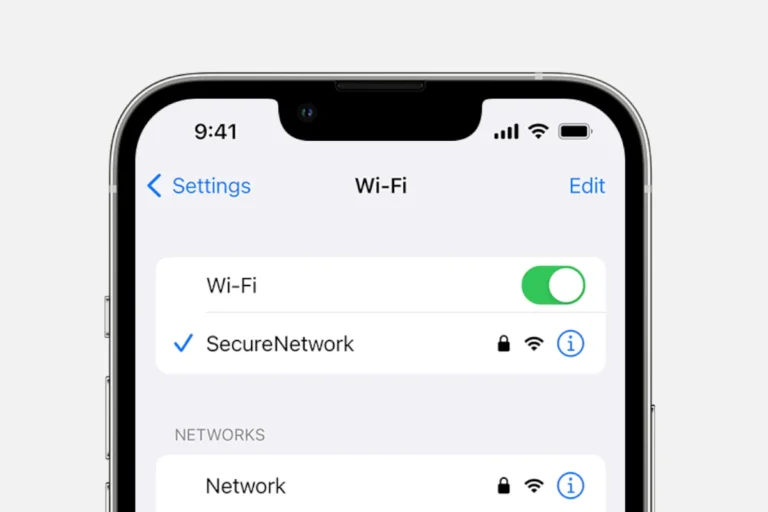
AirPrint enables iPhone users to print messages without additional software or cables. To use AirPrint, ensure the iPhone and printer are connected to the same Wi-Fi network. Open the Messages app and select the conversation to print. Tap the share button and choose the Print option. Select the AirPrint-compatible printer from the list of available devices. Adjust settings like paper size and number of copies if needed. Tap Print to send the job to the printer.
For older printers without AirPrint support, third-party apps can bridge the gap. These apps connect the iPhone to non-AirPrint printers over Wi-Fi. Some popular options include Printer Pro and PrintCentral Pro. Users can install these apps from the App Store to expand their printing capabilities.
Transferring Messages to a Computer for Printing
Transferring text messages from an iPhone to a computer provides more options for printing. This process can be done using built-in features on Mac or third-party software for both Mac and Windows systems.
Using macOS with the Messages App
Mac users can access their iPhone messages directly through the Messages app. This method requires signing in with the same Apple ID on both devices. Open the Messages app on the Mac and enable message syncing in the settings. Once synced, conversations appear in the app’s sidebar. Select the desired conversation and choose File > Print from the menu bar. Adjust print settings as needed before sending to the printer.
This approach works best for recent messages. Older conversations may not sync automatically. For comprehensive access, connect the iPhone to the Mac via USB and use the Finder to back up the device. This ensures all messages are available on the computer.
Exporting Messages with Third-Party Software
Third-party tools like iMazing offer more flexibility for exporting messages. Install iMazing on a Mac or Windows PC. Connect the iPhone via USB and launch the software. Select the Messages option in iMazing’s interface. Choose individual conversations or export all messages. iMazing allows exporting in various formats, including PDF or text files.
For Windows users, this method is particularly useful as it provides a way to access iPhone messages without an Apple ecosystem. Once exported, open the files in Microsoft Word or another text editor for formatting and printing. iMazing’s interface is user-friendly, making it accessible for those less familiar with technical processes.
Legal and Ethical Considerations
Text messages can serve as crucial evidence in legal proceedings. Their use raises important questions about privacy, authenticity, and admissibility in court.
Using Text Messages as Evidence
Courts often accept text messages as valid evidence. Lawyers must prove the messages’ authenticity and relevance to the case. iPhone users can print text messages for legal purposes using specialized software or apps.
Some apps allow exporting messages to PDF format. This preserves time stamps and contact information. Printing these PDFs provides a tangible record for court submission.
Privacy concerns arise when sharing personal conversations. Attorneys should advise clients on the implications of using text messages as evidence. Consent may be required from all parties involved in the conversation.
Text message evidence must meet legal standards for admissibility. This includes proving the sender’s identity and the message’s integrity. Lawyers may need to demonstrate the chain of custody for digital evidence.
Ethical considerations include protecting client confidentiality. Attorneys must balance the need for evidence with privacy rights. They should guide clients on appropriate text communication practices.
Frequently Asked Questions
Printing text messages from an iPhone presents various challenges and options. Users often seek efficient methods to capture and document their conversations for different purposes.
What is the best way to print text messages from an iPhone for legal purposes?
For legal purposes, the most reliable method is to use a third-party forensic tool. These tools capture messages with metadata, ensuring authenticity. Some options include Cellebrite and Oxygen Forensic Detective.
Legal professionals often require notarized printouts. Users should consult with their attorney to ensure the chosen method meets legal standards.
How can one print out text messages from an iPhone including dates and times for documentation?
Screenshots provide a simple way to capture messages with dates and times. Users can take multiple screenshots of their conversation, ensuring each image includes the timestamp.
For a more comprehensive approach, third-party apps like iExplorer or PhoneView can export messages with full date and time information.
What methods are available for printing text messages from an iPhone without using a computer?
While direct printing from an iPhone is limited, some workarounds exist. Users can take screenshots of messages and print them using AirPrint-compatible printers.
Another option is using cloud storage apps. Messages can be saved as images or PDFs to cloud services, then printed from AirPrint-enabled devices.
Are there any free applications that can be used to print text messages from an iPhone?
Several free apps offer basic text message printing functionality. iMazing HEIC Converter allows users to convert and print message screenshots.
CopyTrans Contacts is another free option. It enables exporting messages to a computer for printing, though some features may require a paid upgrade.
How can I export a complete text message conversation from my iPhone to a PDF file?
Third-party apps like iExplorer and PhoneView offer PDF export options. These apps connect to the iPhone and allow users to select conversations for PDF conversion.
For a manual approach, users can take screenshots of the entire conversation and use a PDF creation app to compile them into a single document.
How do I download and print an entire text conversation from my iPhone efficiently?
Efficient downloading and printing of entire conversations often requires computer software. iTunes backups can be accessed with tools like iBackup Viewer to extract messages.
For a quicker method, iExplorer allows users to connect their iPhone and select entire conversations for export. These can then be easily printed from a computer.