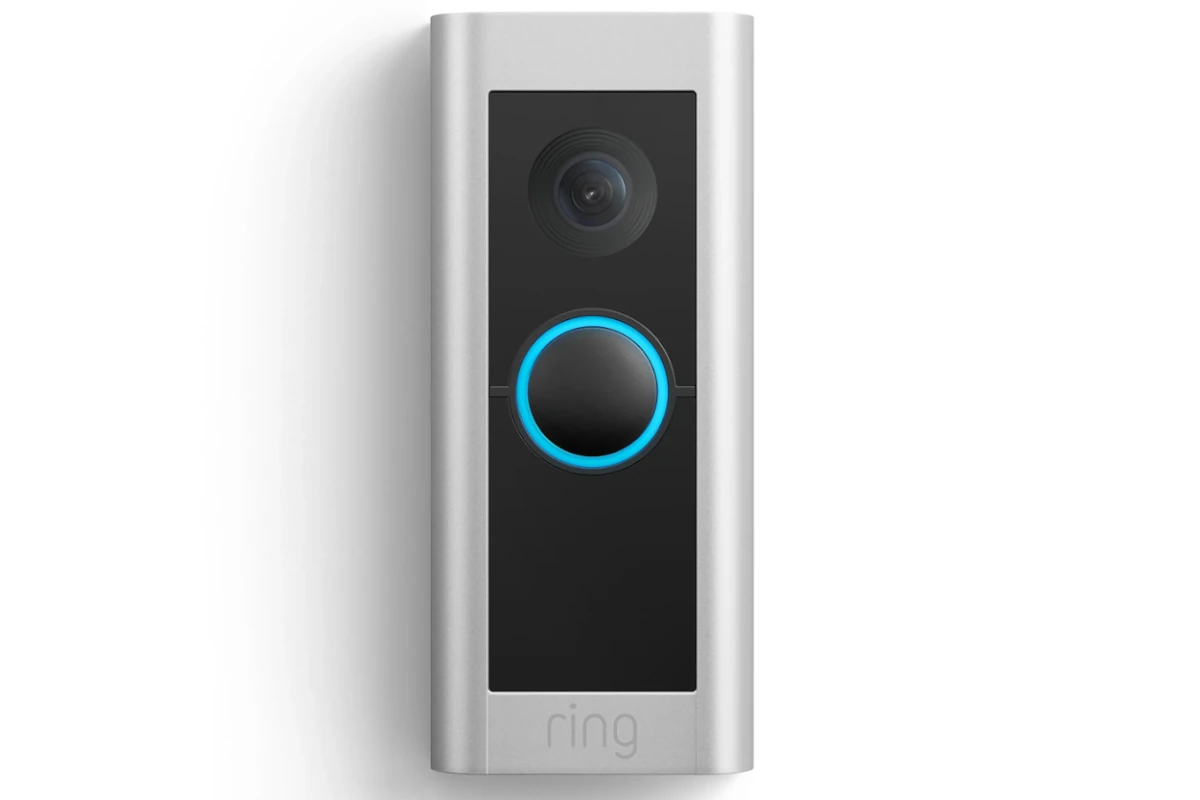
Is your Ring doorbell refusing to connect to Wi-Fi? You’re not alone. Many homeowners face this frustrating issue when setting up or using their smart doorbells. The most common fixes include resetting your device, rebooting your router, checking your Wi-Fi password, and ensuring your Ring doorbell is within range of your network.
Connectivity problems can happen for several reasons. Your Ring device might be too far from the router, your Wi-Fi password could be entered incorrectly, or your network might be experiencing temporary issues. Sometimes, the solution is as simple as factory resetting your Ring device and starting fresh with the setup process.
Before calling customer support, try some basic troubleshooting steps. Unplugging your router for about a minute and then plugging it back in often resolves connection issues. You should also verify your Wi-Fi password is correct and check if your Ring doorbell is compatible with your network.
Ring Doorbell Won’t Connect to Wi‑Fi: Troubleshooting Guide
If your Ring Doorbell won’t connect to Wi‑Fi, don’t worry—this is a common issue and usually easy to fix. Follow the steps below to identify and resolve the problem.
1. Check Your Wi‑Fi Network
Before adjusting the Ring Doorbell itself, confirm your network is working properly.
- Make sure your Wi‑Fi is online and other devices can connect.
- Restart your modem and router:
- Unplug both for 30 seconds.
- Plug the modem back in first, then the router.
- Ensure you’re connecting to a 2.4 GHz network, as many Ring devices do not support 5 GHz.
Tip: If your router combines 2.4 GHz and 5 GHz under one network name, try temporarily disabling 5 GHz in router settings.
2. Move the Ring Doorbell Closer to the Router
Weak Wi‑Fi signal is one of the most common causes.
- Bring the Ring Doorbell within 10–15 feet of the router during setup.
- Avoid thick walls, metal doors, or large appliances between the device and router.
- After setup, you can move it back to its original location.
If the signal is weak at the door, consider adding a Wi‑Fi extender or Ring Chime Pro.
3. Check Wi‑Fi Password and Network Name
Incorrect credentials can prevent connection.
- Double-check that you entered the correct Wi‑Fi password.
- Avoid special characters or emojis in the Wi‑Fi name or password.
- Make sure your phone is connected to the same network you want the Ring Doorbell to use.
4. Put the Ring Doorbell Into Setup Mode
If the device isn’t connecting, reset the setup process.
- Open the Ring app.
- Go to Menu > Set Up a Device.
- Follow the on-screen instructions.
- Press and hold the setup button on the Ring Doorbell until the light starts spinning.
If needed, perform a full reset:
- Hold the setup button for 20 seconds, then release.
5. Update the Ring App and Your Phone
Outdated software can cause connection problems.
- Update the Ring app to the latest version.
- Make sure your phone’s operating system (iOS or Android) is up to date.
- Turn off any active VPNs during setup.
6. Check Router Settings
Some router configurations may block the Ring Doorbell.
Ensure:
- DHCP is enabled.
- Firewall or parental controls aren’t blocking new devices.
- MAC address filtering is disabled.
- Ports required by Ring are not blocked (Ring recommends open outbound access).
If unsure, try connecting the Ring Doorbell to a mobile hotspot to confirm whether the issue is your home network.
7. Check Power and Battery Level
Low power can interrupt Wi‑Fi connection.
- Recharge the battery fully if it’s a battery-powered model.
- For wired models, confirm the doorbell is receiving sufficient voltage.
- Cold weather can temporarily reduce battery performance.
8. Test Internet Speed
Ring recommends:
- At least 2 Mbps upload speed for optimal performance.
You can test this using an online speed test on a device connected to the same Wi‑Fi network.
9. Contact Ring Support
If none of the steps work:
- The device may be defective.
- Your router may not be compatible.
- Advanced network troubleshooting may be required.
Ring Support can help diagnose the issue and determine if a replacement is needed.
Quick Checklist
✅ Wi‑Fi is working
✅ 2.4 GHz network enabled
✅ Correct password entered
✅ Strong signal at doorbell location
✅ Ring app and phone updated
✅ Battery charged or proper wiring
Key Takeaways
- Factory resetting your Ring doorbell and rebooting your router often solves most connectivity problems.
- Verify your Wi-Fi password is correct and ensure your doorbell is within range of your network.
- If problems persist, try connecting to a different network or contact Ring support for device-specific assistance.
Understanding Wi-Fi Connectivity and Your Ring Doorbell
Wi-Fi connectivity is the backbone of your Ring Doorbell’s functionality, determining whether your device can send notifications, record video, or allow you to communicate with visitors.
The Role of 2.4 GHz and 5 GHz Networks
Most modern routers offer two different Wi-Fi frequencies: 2.4 GHz and 5 GHz. Each has distinct advantages for Ring devices.
The 2.4 GHz band provides wider coverage and better penetration through walls and solid objects. This makes it ideal for Ring Doorbells installed far from the router or in homes with thick walls.
However, 2.4 GHz networks face more interference from household devices like microwaves, baby monitors, and other Wi-Fi networks in dense neighborhoods. This can cause connection issues with Ring devices.
Signal strength matters significantly. A weak 2.4 GHz signal is better than no signal at all, but may result in spotty performance or video quality issues.
Compatibility of Ring Video Doorbell with Wi-Fi Frequencies
Most Ring Video Doorbell models are designed to work exclusively with 2.4 GHz networks. This limitation exists because 2.4 GHz offers the range needed for typical doorbell installations.
When setting up your Ring device, ensure your wireless network SSID (network name) is broadcasting on 2.4 GHz. Some routers combine both frequencies under one SSID, which can confuse Ring devices during setup.
For troubleshooting connectivity, factory resetting the device often helps resolve persistent connection problems. The reset button location varies by model but typically requires holding down for 15-20 seconds.
Router placement significantly impacts connectivity. Placing your router in an elevated, central location can dramatically improve connection stability for Ring devices.
Initial Setup Process for Ring Doorbell
Setting up a Ring Doorbell correctly from the beginning can prevent many Wi-Fi connection issues later. The process involves downloading the app and following specific steps while ensuring your network settings are optimized for the device.
Using the Ring App for Setup
The Ring App is essential for the initial setup of any Ring Doorbell device. First, download the Ring App from the App Store or Google Play Store and create an account if you don’t have one.
Once installed, tap the “Set Up a Device” option in the app and select your specific Ring Doorbell model. The app will guide you through a step-by-step process including:
- Scanning the QR code or entering the setup code on your device
- Pressing the setup button on your Ring Doorbell
- Connecting to the temporary Ring network that your doorbell creates
If your Ring Doorbell won’t connect to the setup network, try performing a factory reset by holding down the setup button for 15-20 seconds.
Optimizing Wi-Fi Network Settings
For successful Ring Doorbell connection, your Wi-Fi network needs to meet certain requirements. The device works best with 2.4GHz networks rather than 5GHz, as they provide better range and wall penetration.
Position your router within 30 feet of your Ring Doorbell when possible. If your doorbell is far from your router, consider using a Wi-Fi extender to boost signal strength.
Check these network settings before setup:
- Ensure your Wi-Fi password is correct
- Confirm your network has a strong signal where the doorbell is mounted
- Remove special characters from your network name (SSID)
For persistent connection issues, try rebooting your router by unplugging it from power for about 30 seconds before attempting setup again.
Troubleshooting Connection Issues
When a Ring doorbell won’t connect to Wi-Fi, several factors may be causing the problem. Resolving these issues typically involves checking signal strength, verifying login credentials, and addressing potential interference sources.
Checking Signal Strength and Device Health
Signal strength plays a crucial role in maintaining a stable connection between your Ring doorbell and Wi-Fi network. Open the Ring app and navigate to the Device Health section to check your current signal strength (RSSI).
A good signal typically ranges from -40 to -60 dBm, while anything below -70 dBm may cause connection problems. If your signal is weak, try moving your Wi-Fi router to a more central location or closer to your Ring device.
Consider using a Wi-Fi extender if the distance between your router and doorbell is significant. The Ring app offers detailed diagnostics about your device’s connectivity status and battery health, which can help identify potential issues.
Quick Signal Test:
- Excellent: -40 to -60 dBm
- Good: -60 to -70 dBm
- Fair: -70 to -80 dBm
- Poor: Below -80 dBm (likely to disconnect)
Resolving SSID and Password Conflicts
SSID (network name) and password issues are common reasons Ring doorbells fail to connect. Double-check that you’re entering the correct network name and password during setup.
Many routers broadcast both 2.4GHz and 5GHz networks with similar names. Ring doorbells typically work best with 2.4GHz networks, which provide better range. If you’re trying to connect to a 5GHz network, switch to the 2.4GHz option instead.
If your password contains special characters, try factory resetting your Ring device by pressing and holding the setup button for at least 20 seconds until it chimes. This will clear previous connection attempts and allow a fresh setup.
Some users find success by temporarily simplifying their Wi-Fi password during setup, then changing it back afterward. Remember to update the password in the Ring app if you change your network password.
Addressing DHCP and Wireless Interference Problems
DHCP (Dynamic Host Configuration Protocol) issues can prevent your Ring doorbell from obtaining an IP address. Most home routers have DHCP enabled by default, but it’s worth checking your router settings if connection problems persist.
Try rebooting your router to refresh DHCP assignments. If problems continue, consider assigning a static IP address to your Ring device through your router’s settings.
Wireless interference from other devices can significantly impact connectivity. Common sources include:
- Microwave ovens
- Baby monitors
- Cordless phones
- Bluetooth devices
- Neighboring Wi-Fi networks
To minimize interference, change your router’s channel in the router settings. Channels 1, 6, and 11 are recommended for 2.4GHz networks as they have minimal overlap.
Physical barriers like concrete walls, metal objects, and appliances can also block wireless signals. Try to establish a clear line of sight between your router and Ring doorbell when possible.
Improving Wi-Fi Connection Stability
A stable Wi-Fi connection is crucial for keeping your Ring doorbell online and functioning properly. Connectivity issues often have simple solutions that don’t require technical expertise.
Strategies for Enhancing Wireless Signal
Check your Wi-Fi signal strength in the Ring app first. If it shows as poor, try moving your router to an elevated, central location for better coverage. Walls, especially those made of concrete or containing metal, can significantly block signals.
Consider adding a Wi-Fi extender if your Ring device is far from the router. These affordable devices can boost your signal where it’s needed most.
Create a dedicated SSID just for Ring devices. Some users have solved persistent connection problems by preventing their Ring devices from “roaming” between access points in mesh systems.
Try these quick fixes:
- Reboot your router (unplug for 30 seconds)
- Update your router’s firmware
- Reduce interference from other electronic devices
- Check if your 2.4GHz band is overcrowded
Positioning Your Ring Chime for Better Connectivity
The Ring Chime acts as a signal relay in some setups. Place it halfway between your router and doorbell for optimal results. This strategic positioning creates a stronger bridge for your Wi-Fi signal.
Make sure the Ring Chime isn’t blocked by large metal objects or appliances. Even mirrors and fish tanks can interfere with wireless signals.
When mounting your Ring doorbell, consider signal strength. Sometimes moving it just a few inches can make a difference in connectivity. The ideal height is not only for visitor visibility but also for maintaining strong signal reception.
For persistent issues, try power cycling your devices. This often resolves connection problems automatically by refreshing network settings.
Additional Considerations for Wi-Fi Networks
Several network-related factors can impact your Ring Doorbell’s ability to connect properly. Both hardware upgrades and existing doorbell infrastructure play significant roles in establishing and maintaining a stable connection.
Effect of New Routers on Ring Doorbell Setup
When installing a new router, your Ring Doorbell may struggle to connect to the network. New routers often have different security settings or broadcast on different channels that can affect compatibility with existing devices.
Many newer routers broadcast separate 2.4 GHz and 5 GHz networks. Ring Doorbells typically work best with 2.4 GHz networks as they provide better range and wall penetration. If your router combines both bands under one network name, you may need to separate these networks in your router settings.
Router placement also matters significantly. For optimal connection, position your router in a central, elevated location to minimize interference and distance issues. Some users have resolved connection problems by simply unplugging their internet router and reconnecting it after one minute.
Role of the Doorbell Chime in Wi-Fi Connection
Your existing doorbell chime can interfere with your Ring Doorbell’s Wi-Fi connection in unexpected ways. The electromagnetic fields generated by traditional mechanical chimes may create interference that disrupts wireless signals.
When installing a Ring Doorbell with an existing chime, ensure you’ve:
- Properly connected the diode (if included in your Ring kit)
- Verified proper wiring at both the chime and doorbell
- Checked voltage requirements are being met
Some Ring models require a specific power output to maintain Wi-Fi connectivity. Insufficient power can cause intermittent connection issues that are difficult to diagnose.
If problems persist despite trying other solutions, you might need to factory reset your Ring device by pressing and holding the setup button. This often resolves persistent connection issues by clearing corrupt network settings that prevent proper Wi-Fi connections.
Ring Doorbell and Home Security Implications
When a Ring Doorbell fails to connect to Wi-Fi, it creates significant vulnerabilities in your home security system. Without proper connectivity, crucial security features become unavailable precisely when they might be most needed.
The Importance of a Reliable Internet Connection
A stable internet connection serves as the backbone of any Ring Doorbell security system. Without it, users cannot receive real-time alerts when someone approaches their door or when motion is detected. These connection issues effectively render the doorbell a simple button rather than a smart security device.
Video recording capabilities also depend entirely on Wi-Fi connectivity. When the connection drops, the Ring Doorbell cannot upload footage to the cloud, potentially missing critical security events.
Many homeowners rely on their Ring devices as their primary means of monitoring who comes to their door. This becomes impossible during connectivity failures, creating significant security gaps for families who depend on these devices.
Key connectivity requirements for optimal security:
- Consistent Wi-Fi signal strength of at least 2 bars
- Router placement within reasonable range of the doorbell
- Updated firmware on both router and Ring device
Ensuring Continuous Security Through Wi-Fi Connectivity
Maintaining uninterrupted Wi-Fi connectivity requires proactive measures. Homeowners should regularly check their Ring device’s signal strength through the Ring app to ensure optimal performance.
Strategic router placement makes a substantial difference in connectivity reliability. Placing the router centrally within the home and avoiding barriers like thick walls or metal objects can significantly improve signal strength to exterior-mounted Ring devices.
For larger homes, Wi-Fi mesh systems or extenders may be necessary to maintain strong connectivity. These solutions create a network blanket that ensures the Ring Doorbell maintains its connection regardless of its distance from the main router.
Some users have found success by factory resetting their devices and reconnecting them to their networks when experiencing persistent connectivity issues. This simple troubleshooting step often resolves underlying configuration problems.
Regular password updates for Wi-Fi networks also enhance security without disrupting connectivity. However, users must remember to update their Ring devices with new network credentials.
Device Specific Help and Support
Different Ring devices may require unique troubleshooting approaches based on your setup and smartphone platform. Connection issues often stem from device-specific configurations that need targeted solutions.
Guidance for iPhone Users with the Ring App
iPhone users experiencing connection issues with their Ring Doorbell should first ensure their Ring app is updated to the latest version. Outdated apps can cause unexpected Wi-Fi connection problems.
To verify proper permissions, go to Settings > Privacy > Local Network and confirm Ring has access. Without this permission, the doorbell cannot properly connect to your home network.
If problems persist, try these iPhone-specific steps:
- Toggle Airplane mode on/off to reset network connections
- Disable VPN services which may interfere with local device discovery
- Ensure Bluetooth is enabled during setup (required for initial pairing)
- Position your iPhone closer to both the Ring Doorbell and Wi-Fi router during setup
For stubborn connection issues, factory reset your Ring device and start the pairing process fresh.
Troubleshooting Transformer Issues for Wi-Fi Stability
For hardwired Ring Doorbells, an inadequate transformer can cause Wi-Fi connection problems. The doorbell requires consistent power to maintain stable Wi-Fi connectivity.
Check if your transformer is rated at 16-24 VAC, 30+ VA. Underpowered transformers (like 8-10 VAC models) won’t provide enough power for reliable Wi-Fi connection, especially in cold weather.
Signs of transformer-related Wi-Fi issues include:
- Doorbell connects initially but drops offline frequently
- Device works on battery but disconnects when hardwired
- Wi-Fi connectivity issues worsening in cold weather
Testing voltage at the doorbell terminals should show readings between 16-24 VAC. Readings below 16V indicate insufficient power for stable Wi-Fi operation.
If your transformer needs replacing, hire a licensed electrician for the installation. Proper transformer power ensures your Ring Doorbell maintains reliable internet connection under all conditions.
Frequently Asked Questions
Ring doorbell Wi-Fi connectivity issues can often be resolved through specific troubleshooting steps. These common questions address the most frequent connection problems and their solutions.
What are the troubleshooting steps when a Ring doorbell fails to reconnect to WiFi after a disconnection?
When a Ring doorbell loses its Wi-Fi connection, first check if other devices can connect to your network. If they can, try rebooting your router by unplugging it for about 30 seconds, then plugging it back in.
If the issue persists, try moving your router closer to the Ring device or to a more central location in your home. Wi-Fi signal strength significantly impacts connection reliability.
A factory reset of the Ring device may be necessary if other methods fail. This returns the device to its original state, requiring a complete setup again.
How do I resolve connectivity issues during the initial setup of my Ring doorbell on an iPhone?
During initial setup on an iPhone, ensure Bluetooth and Wi-Fi are both enabled. Many connection failures happen because one or both are turned off.
Make sure the Ring device is in setup mode, usually indicated by a flashing light. If the light isn’t flashing, press and hold the setup button until it does.
Users should verify they’re entering the correct Wi-Fi password. A common setup issue is incorrect password entry, which prevents connection.
What should I do if my Ring doorbell fails to connect to WiFi following a power outage?
After a power outage, wait for your router to fully restart and establish internet connectivity. This typically takes 2-5 minutes after power returns.
Check if the Ring device needs charging, as power outages may coincide with battery depletion. A doorbell with insufficient battery power may fail to connect even when Wi-Fi is available.
If connection issues persist, power cycle your Ring device by removing it from its mount or disconnecting power for 30 seconds, then reattaching.
Are there specific instructions for connecting a Ring doorbell 2 to WiFi when experiencing issues?
For Ring Doorbell 2 specific issues, ensure the device is within 15 feet of your router during initial setup. After setup is complete, it can be mounted at its intended location.
Remove the faceplate and press the orange button to put the device in setup mode. The light on the front will spin, indicating it’s ready to connect.
Some users have successfully resolved connection issues by unplugging any hardwired ethernet connections during the Ring setup process, then reconnecting them afterward.
What measures can be taken if the Ring doorbell is not connecting or syncing with the smartphone app?
Ensure your smartphone has the latest version of the Ring app installed. Outdated apps sometimes have bugs that prevent proper device communication.
Check that both the Ring device and smartphone are connected to the same Wi-Fi network. Connection issues often occur when devices are on different networks.
Force close the Ring app and restart it. This simple step often resolves syncing problems by clearing temporary app data that might be causing conflicts.
Why am I receiving a ‘failed to connect’ error when attempting to set up my Ring device?
A “failed to connect” error often indicates interference or distance issues. Try moving your router closer to the Ring device or removing potential sources of interference like large metal objects or other electronic devices.
Some users need to temporarily disable their router’s 5GHz band during setup, connecting only to the 2.4GHz network. Ring devices typically connect more reliably to 2.4GHz networks.
Reset your mobile device’s network settings if connection issues persist. This clears cached network information that might be preventing proper communication between your phone and the Ring device.