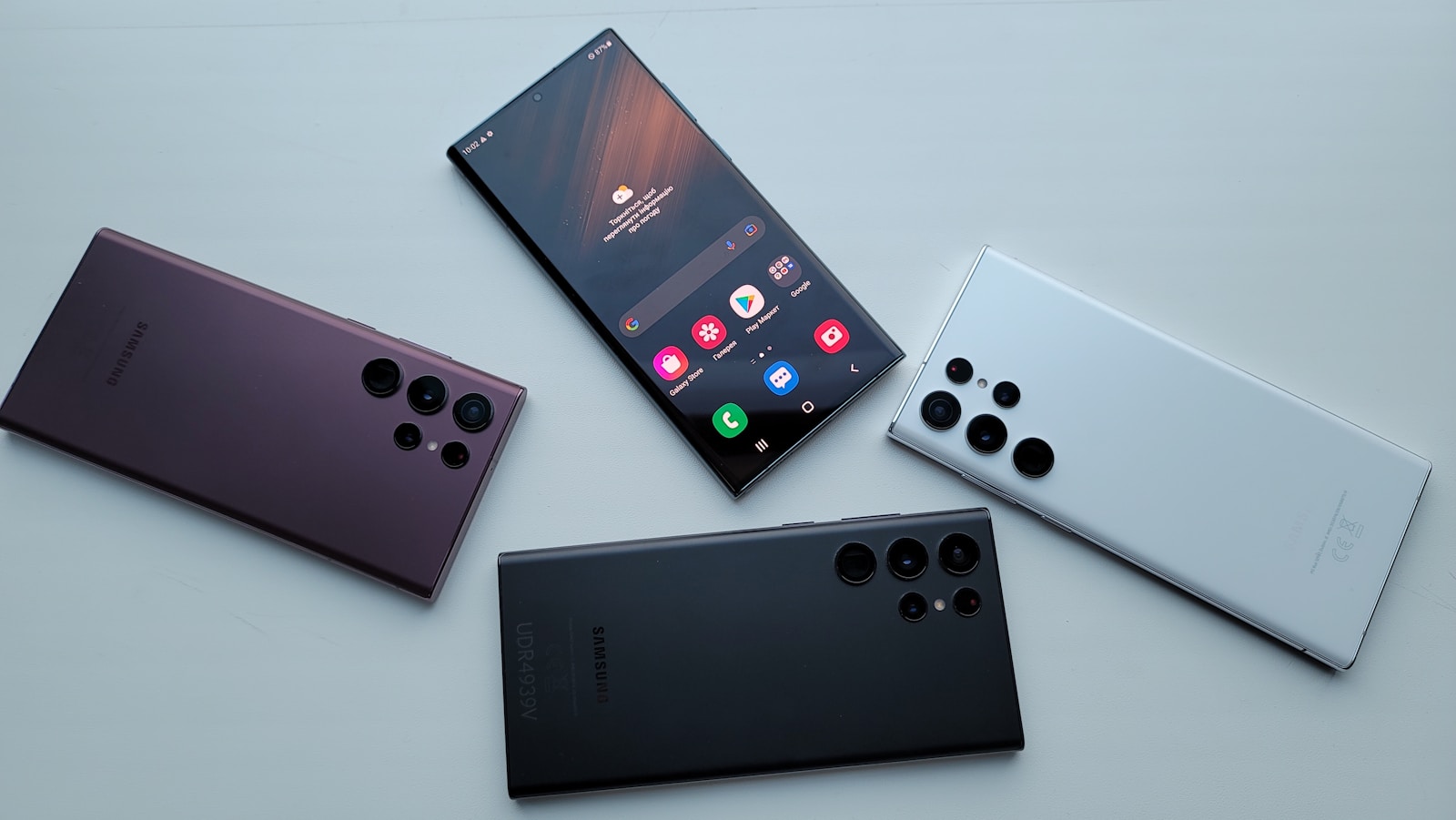
Is your Samsung Galaxy S22 refusing to charge? This can be frustrating, especially when you need your phone for important calls or work. There are several common reasons why your device might not be powering up, from simple cable issues to more complex software problems.
The most effective solutions include checking your charging cable and adapter, cleaning the charging port of debris, restarting your phone, and trying wireless charging if available. Sometimes the fix is as simple as removing lint from the charging port with a toothpick or compressed air, while other times you may need to check your fast charging settings in your phone’s battery menu.
If these quick fixes don’t work, your device might have more serious issues. Recent software updates can sometimes cause charging problems, requiring a soft reset by holding down the power button for 10 seconds. For persistent problems, running a diagnostic test through the Samsung Members app can help identify hardware failures that may require professional attention.
Samsung Galaxy S22 Not Charging: Troubleshooting Guide
If your Samsung Galaxy S22 is not charging, the issue can range from a simple cable problem to a software or hardware fault. Follow this step‑by‑step guide to identify and fix the problem.
1. Check the Charging Cable and Adapter
Faulty accessories are the most common cause of charging issues.
What to do:
- Use the original Samsung cable and adapter if possible
- Try a different USB‑C cable
- Try a different wall adapter
- Plug into a different power outlet
✅ If it charges with another cable or adapter, replace the faulty accessory.
2. Inspect and Clean the Charging Port
Lint, dust, or debris in the USB‑C port can block the connection.
How to clean safely:
- Power off the phone
- Use a wooden toothpick or plastic pick (not metal)
- Gently remove visible debris
- Blow lightly or use compressed air
⚠️ Do not use liquids or sharp objects.
3. Try Wireless Charging
The Galaxy S22 supports Qi wireless charging.
What this tells you:
- ✅ Wireless charging works → likely a USB‑C port issue
- ❌ Wireless charging doesn’t work → possible software or battery issue
4. Restart the Phone
Temporary system glitches can stop charging.
Steps:
- Hold Power + Volume Down
- Tap Restart
After rebooting, connect the charger again.
5. Check for Moisture or Temperature Warnings
Samsung phones stop charging to prevent damage.
Look for messages like:
- “Moisture detected in charging port”
- “Phone temperature too high/low”
Fixes:
- Let the phone dry completely (at least 1–2 hours)
- Move the phone to a room‑temperature environment
6. Boot Into Safe Mode
Third‑party apps can interfere with charging.
How to enter Safe Mode:
- Power off the phone
- Turn it on and hold Volume Down
- Release when Safe Mode appears
✅ If charging works in Safe Mode, uninstall recently added apps.
7. Check for Software Updates
Outdated firmware can cause charging bugs.
Steps:
- Go to Settings > Software update
- Tap Download and install
8. Check Battery Health
Over time, batteries degrade and may stop charging properly.
Signs of battery failure:
- Phone only charges at certain angles
- Charging stops randomly
- Battery drains unusually fast
If your Galaxy S22 is over 2–3 years old, battery replacement may be needed.
9. Factory Reset (Last Resort)
If all else fails, software corruption may be the cause.
⚠️ Back up your data first
Steps:
- Settings > General management > Reset > Factory data reset
10. When to Contact Samsung or a Repair Center
Seek professional help if:
- The phone won’t charge with any charger
- Wireless charging also fails
- The charging port is loose or damaged
- The phone overheats while charging
Recommended options:
- Samsung Authorized Service Center
- Certified phone repair shop
Quick Checklist
✅ Try another cable and adapter
✅ Clean charging port
✅ Test wireless charging
✅ Restart phone
✅ Update software
✅ Use Safe Mode
✅ Consider battery or port repair
Key Takeaways
- Check and clean physical components like cables, adapters, and charging ports before attempting more complex solutions.
- Software issues can prevent charging, so restart your device or perform a soft reset if basic troubleshooting fails.
- Regular maintenance and avoiding extreme temperatures can prevent most charging problems with your Samsung Galaxy S22.
Understanding Samsung Galaxy S22 Charging Basics
The Samsung Galaxy S22 offers multiple charging options with specific requirements for optimal performance. Knowing how your device charges and identifying common issues can help resolve most charging problems quickly.
Types of Charging Methods
The Galaxy S22 supports several charging technologies to fit different user needs:
- Wired Charging: Uses USB-C connection with various speeds:
- Standard charging (15W)
- Fast charging (25W)
- Super fast charging (45W on some models)
Important: Always use Samsung-certified chargers for best results and device safety. Third-party chargers may not deliver proper power levels.
The S22 also features wireless charging capabilities up to 15W with compatible Qi wireless chargers. This provides convenient, cable-free power but typically charges more slowly than wired methods.
Reverse wireless charging is also available, allowing your S22 to charge other devices like Galaxy Buds or watches by placing them on the back of your phone.
Recognizing Common Charging Issues
Several signs indicate charging problems with your Galaxy S22:
Charging starts then stops – This often occurs when the Super fast charging keeps stopping and reverts to standard charging mode.
No charging response – When your device shows no charging animation or notification when plugged in. This may be due to damaged cables, incompatible chargers, or debris in the charging port.
Error messages like “moisture detected” can prevent charging as a safety measure. Some users report this happening after software updates, requiring a specific restart procedure to resolve.
Slow charging speeds despite using fast charging equipment often indicates either port issues or battery optimization settings limiting charge rates.
Troubleshooting Charging Problems for Samsung Galaxy S22
When your Samsung Galaxy S22 stops charging, several common issues might be causing the problem. A systematic approach to troubleshooting can often resolve these issues without requiring professional repair services.
Inspecting the Charging Port and Cable
Physical damage or debris in the charging port is a common reason why your Samsung Galaxy S22 won’t charge. First, examine the charging port for visible lint, dust, or debris that might be blocking the connection.
To clean the port safely, turn off your phone completely. Use a small wooden or plastic toothpick to gently remove any visible debris. Never use metal objects as they can damage the delicate components inside the port.
Next, inspect your charging cable for any damage. Frayed wires or bent connectors can prevent proper charging. Try a different cable and power adapter to determine if your accessories are the problem.
Sometimes the S22’s temperature affects charging. If your phone feels unusually hot, let it cool down before attempting to charge again. Excessive heat can trigger safety protocols that temporarily disable charging.
Checking for Software and Firmware Issues
Software glitches can prevent your Galaxy S22 from charging properly. Many users report charging problems after software updates, with battery levels fluctuating even while plugged in.
Start by restarting your phone, which can resolve temporary software hiccups. Press and hold the power button, then tap “Restart.”
Check if your phone’s software is up to date:
- Go to Settings
- Scroll to Software update
- Tap Download and install
If your phone displays a charging animation but the battery percentage doesn’t increase, try putting your device in Safe Mode to identify if a third-party app is causing the issue:
- Press and hold the power button
- Touch and hold Power off
- Tap Safe mode when prompted
Performing a Hard Reset
When basic troubleshooting fails, performing a hard reset (also known as a soft reset) can resolve more stubborn charging issues without losing data.
For Galaxy S22 models, try this recommended reset procedure:
- Turn off your device completely
- Connect to a computer or plug in USB-C headphones
- Press and hold the Volume Up key
- While holding Volume Up, press and hold the Power key
If the soft reset doesn’t work, a factory reset might be necessary, but this should be a last resort as it erases all data. Before proceeding, back up all important information.
For persistent issues, especially with the S22 Ultra or if the charging port appears damaged, consider contacting Samsung support or visiting an authorized service center.
In-Depth Look at Hardware Related Charging Issues
When a Samsung Galaxy S22 won’t charge, hardware problems are often to blame. Physical components can fail or degrade over time, causing charging issues that software fixes can’t resolve.
Understanding OEM Parts and Repair
The charging port on the Samsung Galaxy S22 is particularly vulnerable to physical damage. Bent pins or accumulated debris can prevent proper connection with the charging cable. Users can try cleaning the charging port using compressed air or a small brush before seeking professional repair.
When repairs are necessary, using OEM (Original Equipment Manufacturer) parts is crucial. Non-OEM components might initially work but often lead to compatibility issues and reduced charging efficiency.
Professional repair services have specialized tools to safely replace the charging port without damaging surrounding components. DIY repairs risk further damage to the device’s delicate internals.
Some users report success by connecting to a computer or using USB-C headphones to “reset” the port functionality.
Evaluating Battery Health and Lifespan
The S22’s battery naturally degrades over time, typically maintaining about 80% capacity after 500 charge cycles. Users can check battery health in the Samsung Members app under “Battery status.”
Signs of battery deterioration include:
- Rapid battery drainage
- Phone becoming warm during charging
- Inconsistent battery percentage readings
- Phone shutting down before reaching 0%
Environmental factors significantly impact battery health. High temperatures accelerate degradation, which is why cooling your phone down can sometimes resolve charging issues.
Wireless charging provides an alternative when the charging port malfunctions but puts additional strain on battery health over time. Samsung’s battery optimization settings can help extend overall battery lifespan by limiting maximum charge to 85%.
Importance of Regular Maintenance for Charging Efficiency
Keeping your Samsung Galaxy S22 properly maintained can significantly improve its charging performance and extend battery life. Regular care prevents common charging issues and helps maintain optimal power delivery to your device.
Cleaning and Care for Your Charging Port and Cable
The charging port on your Galaxy S22 easily collects dust, lint, and debris over time. This buildup can prevent proper connection between your phone and charging cable, leading to interrupted charging or no charging at all.
To clean the port safely:
- Use a small wooden or plastic toothpick to gently remove visible debris
- Try compressed air to blow out dust (keep the can upright)
- Never use metal objects or liquid cleaners in the port
Your USB cable needs attention too. Battery performance depends on proper cable condition. Inspect cables regularly for:
- Fraying or exposed wires
- Bent or damaged connectors
- Corrosion on metal parts
Replace damaged cables immediately with high-quality alternatives. Using damaged cables can lead to slow charging speeds or potential damage to your phone’s charging system.
Software Updates and Optimizations
Samsung regularly releases software updates that improve charging efficiency and fix bugs. These updates often address charging problems reported by users and optimize battery management.
To ensure optimal charging:
- Keep your device updated to the latest software version
- Go to Settings > Software Update > Download and Install
- Enable automatic updates for convenience
Battery optimization settings also play a crucial role. Samsung’s battery care features help maintain long-term battery health. Monitor your battery health through the Device Care section in Settings.
Diagnostic tools like MobileTrans can help identify charging issues not immediately apparent. These applications provide detailed information about battery health and charging efficiency, helping you determine if problems stem from hardware or software sources.
Exploring Advanced Charging Technologies
The Samsung Galaxy S22 series incorporates cutting-edge charging technologies that both address common charging issues and enhance the overall user experience. These innovations work together to ensure reliable power delivery despite increasing demands from advanced features.
5G Impact on Charging and Battery Usage
The Samsung Galaxy S22 Ultra 5G experiences unique power management challenges due to its 5G capabilities. 5G connectivity typically consumes 20-30% more battery than 4G, putting additional strain on charging systems.
When a Galaxy S22 isn’t charging properly, 5G usage patterns may be contributing to the problem. The phone’s advanced processors must work harder to manage 5G data transmission, generating more heat that can trigger protective charging limitations.
To improve charging performance on your S22 while using 5G:
- Toggle between network modes when charging (Settings > Connections > Mobile Networks)
- Charge during low-usage periods to reduce heat generation
- Enable power saving mode which can limit 5G usage during charging
Samsung implemented specialized power management algorithms in the S22 series to balance 5G performance with charging efficiency. This helps prevent overheating issues that might halt the charging process.
Innovations in Fast Charging Capabilities
The Samsung Galaxy S22 series features impressive fast charging technology, supporting up to 45W wired charging on certain models. This allows the battery to reach approximately 50% capacity in just 20 minutes.
However, these advanced charging capabilities require specific hardware. When an S22 won’t charge, it’s often because the charging cable or adapter isn’t compatible. The S22 requires:
- USB-C PD (Power Delivery) chargers
- Chargers with PPS (Programmable Power Supply) support
- Minimum 25W power output for standard fast charging
Wireless charging options have also evolved for the S22 series, offering up to 15W with Qi-certified chargers. This provides an alternative charging method when port-related issues arise.
Samsung’s Adaptive Fast Charging technology intelligently adjusts power levels based on battery temperature and current charge level. This prevents damage while optimizing charging speed throughout the process.
Specifics of Charging Your Samsung Galaxy S22 Ultra
The Samsung Galaxy S22 Ultra features unique charging capabilities that require proper handling to maintain optimal battery health. Understanding the device’s charging system helps prevent common issues while extending battery life.
Adapting to the Unique Features of the S22 Ultra
The S22 Ultra uses USB-C technology with specific power requirements. When charging issues occur, the problem could be with the charging cable or adapter. Always use Samsung-authorized chargers designed for the S22 Ultra to avoid damage.
The charging port can collect dust and debris over time. If your S22 Ultra suddenly stops charging, check for blockages in the port. Use a wooden toothpick or compressed air to gently clean it without damaging the connectors.
Some users report their S22 Ultra showing a moisture detection warning after updates. This safety feature sometimes activates incorrectly. If this happens:
- Restart your phone
- Try wireless charging temporarily
- Let the phone sit in a dry area for an hour
Maximizing the Battery Performance
The S22 Ultra’s battery performs best when charged between 20% and 80%. Extreme levels (fully drained or 100% charged) can reduce battery lifespan. Use the built-in battery protection settings to limit charging to 85%.
Wireless charging offers convenience but generates more heat. Excessive heat damages batteries over time. Remove thick cases when wireless charging to improve efficiency and reduce heat buildup.
The S22 Ultra’s fast charging capability can deliver hours of use from just minutes of charging. However, this feature generates more heat. For overnight charging, standard speed is gentler on the battery.
Background apps can drain power even while charging. Check for apps using excessive battery by going to Settings > Battery > Battery Usage. Consider closing power-hungry apps that aren’t essential.
Safety Precautions During Charging
Charging your Samsung Galaxy S22 safely is crucial to prevent damage to your device and ensure your personal safety. Proper charging practices help extend battery life and avoid potential hazards that could result in serious consequences.
Avoiding Common Hazards
Never use your Galaxy S22 while it’s submerged in water, even if the phone is water-resistant. Water and electricity don’t mix well, creating a dangerous situation that could damage your device or cause electric shock.
Always inspect your charging cable for visible damage before connecting it to your phone. Frayed cables or exposed wires can cause short circuits or even fires.
Avoid charging your phone under pillows or on soft surfaces that trap heat. The Galaxy S22 generates heat during charging, and blocking ventilation can lead to overheating issues.
If your phone becomes unusually hot during charging, disconnect it immediately and let it cool down. Use the power button to turn off the device if necessary.
Use only Samsung-approved chargers and cables. Third-party chargers without proper certification might not regulate voltage correctly, potentially damaging your battery or causing safety issues.
Keep your charging port clean from lint and debris, as buildup can create resistance that generates excessive heat during charging.
Frequently Asked Questions
Samsung Galaxy S22 charging problems can happen for several reasons, from software issues to physical damage. The following questions address the most common charging concerns and provide practical solutions to get your device working again.
Why does my Samsung Galaxy S22 fail to charge when connected to a power source?
Your Samsung Galaxy S22 might fail to charge due to a dirty charging port. Lint, dust, and debris can build up in the USB-C port and prevent proper connection. Inspect the port and carefully clean out any foreign debris using compressed air or a toothpick.
The charging cable or adapter might also be faulty. Try using different cables and adapters to determine if the original accessories are the problem.
What should I do if my Samsung Galaxy S22 isn’t turning on or accepting a charge?
First, try a forced restart by pressing and holding the Volume Down and Power buttons simultaneously for 10-15 seconds. This often resolves temporary system freezes that prevent charging.
If that doesn’t work, connect your phone to a different power source and let it charge for at least 30 minutes. Sometimes batteries that are completely drained need time before showing any signs of charging.
Can a recent software update cause charging issues on my Samsung Galaxy S22?
Yes, software updates can sometimes cause charging problems. Many users have reported charging issues after installing the latest updates where battery levels fluctuate while plugged in.
Some updates have triggered false moisture detection warnings that prevent charging. This appears to be a known issue after the 5.1 update, with devices claiming to detect moisture despite not being exposed to any liquids.
How can I troubleshoot my Samsung Galaxy S22 not charging after the battery has fully drained?
When a battery completely drains, it might enter a deep discharge state. Connect your phone to the original Samsung charger and wait at least 30 minutes. The charging icon might not appear immediately.
Try different charging methods like wireless charging if available. Sometimes the USB port may be damaged while the wireless charging function still works.
Is there a common issue with Samsung phones not charging or powering up?
A common issue with Samsung Galaxy S22 models is the false moisture detection alert. This safety feature prevents charging when moisture is detected, but sometimes triggers incorrectly.
Another frequent problem is battery calibration errors. The phone might show incorrect battery percentages or charge inconsistently, rising and falling while plugged in and not in use.
What steps can be taken if my Samsung Galaxy S22 stops charging intermittently?
Check the fast charging settings in your phone’s battery settings. Sometimes disabling fast charging can resolve intermittent charging issues.
Run a diagnostic test using the Samsung Members app to identify potential hardware or software problems affecting the charging process.
Boot your phone in safe mode to determine if a third-party app is causing the charging issue. If your phone charges normally in safe mode, an app may be the culprit.