An iPhone that won’t charge can be frustrating and disruptive. This common issue often has simple solutions. Most charging problems stem from damaged cables, dirty ports, or software glitches that can be resolved at home.
Users may encounter various charging issues. Sometimes the iPhone shows it’s charging but the battery percentage doesn’t increase. Other times, it may not respond to the charger at all. These problems can occur due to physical damage, outdated software, or incompatible accessories.
Troubleshooting an iPhone that won’t charge typically involves checking the charging cable, cleaning the Lightning port, and restarting the device. If these steps don’t work, users might need to update their iPhone’s software or seek professional help from Apple Support.
Why Is My iPhone Not Charging? A Complete Troubleshooting Guide
If your iPhone isn’t charging, it can be frustrating—and sometimes alarming. The good news is that most charging problems are caused by simple, fixable issues, not a broken phone. This guide walks you through every common reason an iPhone won’t charge and how to fix it step by step.
1. Check the Charging Cable and Adapter
Common Problems
- Frayed or damaged cable
- Non‑certified (non‑MFi) charger
- Loose or bent connector
- Faulty wall adapter
What to Do
- Try a different Apple‑certified cable
- Test with a different power adapter
- Plug into a wall outlet instead of a computer USB port
- Wiggle the cable gently to check for intermittent charging
✅ If the battery icon appears briefly and disappears, the cable is often the issue.
2. Clean the Charging Port (Very Common Fix)
Pocket lint and dust frequently block the Lightning or USB‑C port.
Signs of a Dirty Port
- Cable won’t click firmly into place
- Charging only works at certain angles
- iPhone charges very slowly or not at all
How to Clean Safely
- Power off your iPhone
- Use a wooden toothpick or plastic pick
- Gently remove lint and debris
- Avoid metal tools or liquids
⚠️ Many “dead” charging ports are just clogged.
3. Try a Different Power Source
The problem may not be your phone.
- Test a different wall outlet
- Avoid extension cords
- Try charging via a power bank
- Plug into a different USB port on your computer
If it charges elsewhere, your outlet or power strip is faulty.
4. Your iPhone Is Too Hot or Too Cold
iPhones will stop charging automatically if the temperature is unsafe.
You May See:
“Charging On Hold. iPhone will resume charging when it returns to normal temperature.”
Fix
- Remove the phone from direct sunlight
- Take off thick cases
- Let the phone cool down or warm up naturally
Charging resumes once the temperature stabilizes.
5. Software Glitch or iOS Bug
Temporary software issues can interrupt charging.
Try This
- Restart your iPhone
- Update to the latest version of iOS
- Force restart if the screen is frozen
Steps vary by model, but a restart fixes many charging issues.
6. Optimized Battery Charging Is Pausing Charging
This is a normal iOS feature, not a malfunction.
What Happens
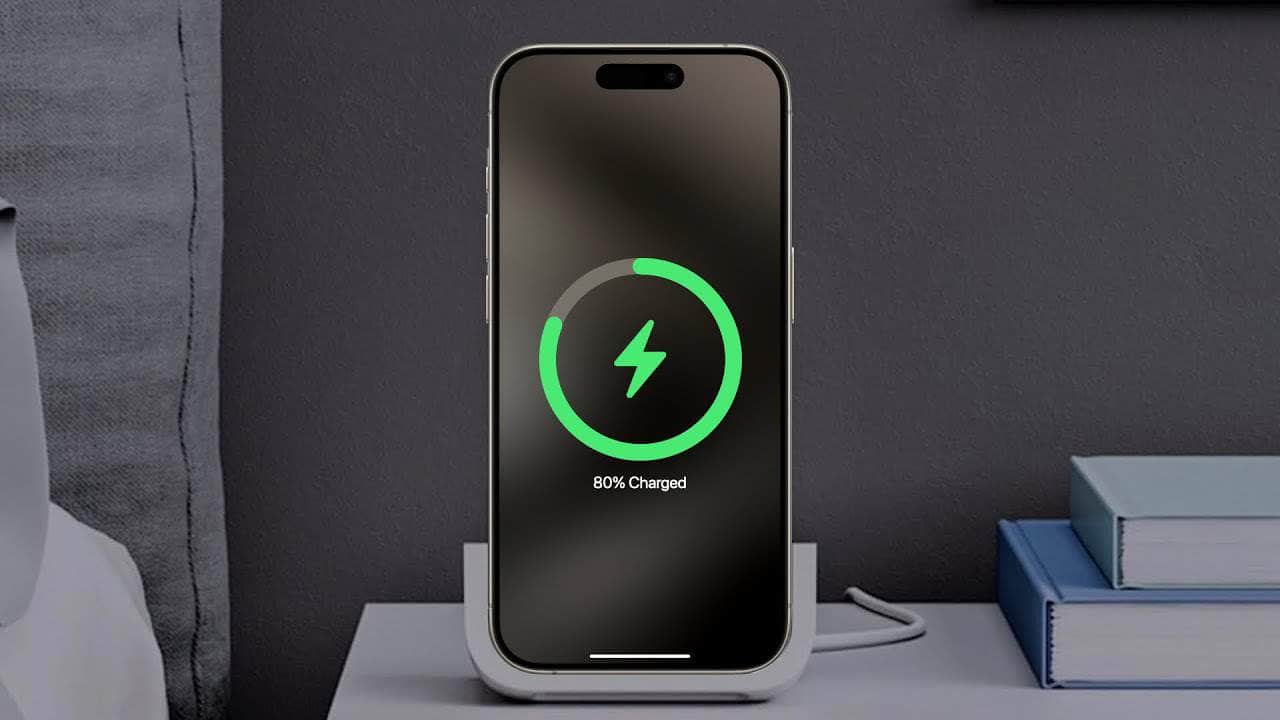
- Charging stops at 80%
- iPhone learns your daily charging habits
- Charging finishes just before you usually unplug it
What to Do
- Wait—it will continue automatically
- Or disable temporarily:
- Settings → Battery → Battery Health & Charging
- Turn off Optimized Battery Charging
7. Wireless Charging Problems (If Applicable)
If wired charging doesn’t work but wireless does (or vice versa), the issue may be specific.
Check:
- Proper alignment on the charging pad
- Remove thick or metal cases
- Use a Qi‑certified charger
- Make sure the pad is plugged into a high‑power adapter
Wireless charging is slower and more sensitive to positioning.
8. Battery Health Is Degraded
An old battery may refuse to charge properly.
How to Check
- Settings → Battery → Battery Health & Charging
- Look at Maximum Capacity
If it’s below 80%, charging behavior may be inconsistent.
🔋 Battery replacement often solves the issue.
9. Liquid Damage or Internal Hardware Issue
If your iPhone:
- Shows a liquid detection warning
- Was recently dropped in water
- Doesn’t charge at all with any cable
Then internal components may be damaged.
What to Do
- Do not charge if you see a liquid warning
- Let the phone dry completely
- Visit an Apple Store or authorized service provider
10. Charging Port or Power IC Failure
If none of the above work, the issue may be hardware‑related.
Possible causes:
- Damaged charging port
- Failed power management chip
- Logic board issues
These require professional repair.
Quick Troubleshooting Checklist
✅ Try a different cable and adapter
✅ Clean the charging port
✅ Restart the iPhone
✅ Check temperature warnings
✅ Inspect battery health
✅ Test wireless charging
When to Contact Apple Support
You should contact Apple if:
- The iPhone never shows the charging symbol
- You see repeated liquid warnings
- Battery drains while plugged in
- The device won’t power on at all
Final Thoughts
If your iPhone is not charging, don’t panic. In most cases, the fix is as simple as cleaning the port or replacing a cable. Only a small percentage of cases involve serious hardware failure.
Key Takeaways
- Check the charging cable and clean the Lightning port for common charging issues
- Restart the iPhone and update its software to resolve potential software glitches
- Seek professional help if basic troubleshooting doesn’t solve the charging problem
Understanding iPhone Charging Mechanics
iPhone charging involves a complex interplay of hardware and software components. The charging system relies on specific parts working together to safely and efficiently power the device.
How the iPhone Charging System Works
iPhones use lithium-ion batteries that require careful management. The charging process begins when a power source is connected to the Lightning port or wireless charging pad. A power management chip regulates the incoming voltage and current.
The iPhone’s software monitors the battery level and adjusts the charging rate. It employs fast charging initially, then slows down as the battery approaches full capacity. This method helps preserve battery health.
USB Power Delivery allows compatible iPhones to charge faster with higher wattage chargers. The device negotiates the optimal power delivery with the charger to ensure safe, rapid charging.
Aging of Battery Components
iPhone batteries degrade over time due to chemical changes. Repeated charge cycles cause the battery to lose capacity gradually. Heat exposure and deep discharges can accelerate this aging process.
The cathode and anode materials inside the battery break down slowly. This leads to increased internal resistance, reducing the battery’s ability to hold a charge and deliver power efficiently.
Apple’s iOS includes features to mitigate battery aging effects. It may limit performance on older devices to prevent unexpected shutdowns caused by weakened batteries.
Battery Health and Its Impact on Charging
iOS provides a Battery Health feature that shows the battery’s maximum capacity percentage. As this number decreases, charging efficiency may decline. The phone might charge more slowly or struggle to reach 100%.
Optimized Battery Charging is a feature that delays charging past 80% in certain situations. This reduces the time the battery spends fully charged, which can stress the battery.
Users can check their battery health in Settings > Battery > Battery Health & Charging. If the maximum capacity falls below 80%, Apple recommends a battery replacement to restore optimal charging and performance.
Troubleshooting Common iPhone Charging Issues
When an iPhone won’t charge, several factors can be at play. Identifying and addressing these issues can often restore normal charging functionality.
Assessing the Charging Cable and Power Adapter
Check the charging cable for visible damage. Look for frayed ends, exposed wires, or bent connectors. Replace damaged cables immediately. Inspect the power adapter for bent prongs or debris in the USB port.
Try different wall outlets to rule out power source issues. Use only Apple-certified or MFi (Made for iPhone) accessories to ensure compatibility and safety.
Test the cable with other devices to determine if it’s faulty. If possible, borrow a friend’s charger to isolate the problem.
Cleaning and Maintenance of the Charging Port
Dust, lint, and debris can accumulate in the iPhone’s charging port, preventing proper connection. Turn off the iPhone before cleaning.
Use a soft, dry toothbrush to gently brush out debris. Alternatively, use compressed air in short bursts to dislodge particles.
Avoid inserting metal objects into the port, as this can cause damage. If unsure, seek professional help from an Apple Store or authorized service provider.
Regular cleaning can prevent charging issues and extend the life of the charging port.
Addressing Software-Related Charging Problems
Software glitches can sometimes interfere with charging. Force restart the iPhone by pressing and quickly releasing the volume up button, then the volume down button, and finally holding the side button until the Apple logo appears.
Update iOS to the latest version by going to Settings > General > Software Update. This can resolve known charging bugs.
If issues persist, reset all settings by navigating to Settings > General > Transfer or Reset iPhone > Reset > Reset All Settings. This won’t erase data but will reset system settings.
Optimized Battery Charging Functionality
Optimized Battery Charging is a feature designed to reduce battery aging. It learns your daily charging habits and delays charging past 80% until you need to use your iPhone.
This feature can sometimes cause confusion, making it seem like the iPhone isn’t charging fully. To disable it temporarily:
- Go to Settings > Battery > Battery Health & Charging
- Toggle off Optimized Battery Charging
- Select “Turn Off Until Tomorrow” or “Turn Off”
Remember that keeping this feature on can extend overall battery lifespan.
When to Seek Professional Help
Professional assistance becomes necessary when common troubleshooting methods fail to resolve iPhone charging issues. Experts can diagnose and fix complex problems that are beyond the scope of user-level solutions.
Contacting Apple Support for Technical Assistance
Apple Support offers remote diagnostics and guidance for iPhone charging problems. Users can reach out via phone, chat, or email. Support representatives may walk through additional troubleshooting steps or run remote diagnostics to identify the issue.
Apple’s online support portal provides resources like articles and video tutorials. These can help users attempt more advanced fixes before escalating to direct support.
If remote assistance doesn’t solve the problem, Apple Support may recommend bringing the device to an Apple Store or authorized service provider.
Deciding to Visit an Authorized Service Provider
An in-person visit becomes necessary when remote troubleshooting is ineffective. Authorized service providers have specialized tools to diagnose hardware issues like faulty charging ports or battery problems.
Technicians can perform repairs that aren’t possible at home, such as replacing internal components. They also have access to genuine Apple parts, ensuring compatibility and maintaining the device’s warranty.
Before visiting, users should back up their iPhone data. This precaution protects important information in case a full device reset or replacement is needed.
Authorized providers can often complete repairs same-day, minimizing downtime. They may also offer temporary replacement devices for longer repairs.
Frequently Asked Questions
iPhone charging issues can be frustrating. These common questions address key troubleshooting steps and solutions for various charging problems.
How can I clean my iPhone’s charging port safely?
Use a soft-bristled brush or compressed air to remove debris. Avoid metal objects that could damage the port. Gently brush or blow out lint and dust. Ensure the port is dry before attempting to charge.
What should I do if my iPhone indicates it’s charging but the battery percentage doesn’t increase?
Restart your iPhone. Check for iOS updates. Try a different charging cable and power source. If the issue persists, contact Apple Support or visit an authorized service provider for further assistance.
What are the steps to take if my iPhone won’t charge or turn on?
Force restart your iPhone. Check the charging cable and power adapter for damage. Try a different outlet. If possible, wirelessly charge the device. If these steps fail, seek professional help.
Why might my new iPhone not charge when it is connected to the charger?
Verify the charger’s compatibility with your iPhone model. Ensure the charging port is clean and undamaged. Try a different cable or charger. If problems continue, the device may have a hardware issue requiring professional assessment.
What can cause an iPhone to fail to show the charging symbol when the battery is depleted?
A deeply discharged battery may need time to respond. Leave the iPhone plugged in for at least 30 minutes. If no response, try a different charger or cable. Hardware issues may require professional repair.
How can I determine if my iPhone’s charging port is damaged?
Inspect the port for visible damage or debris. Try multiple known-working cables. If charging remains inconsistent, visit an Apple Store or authorized service provider for a thorough inspection and diagnosis.