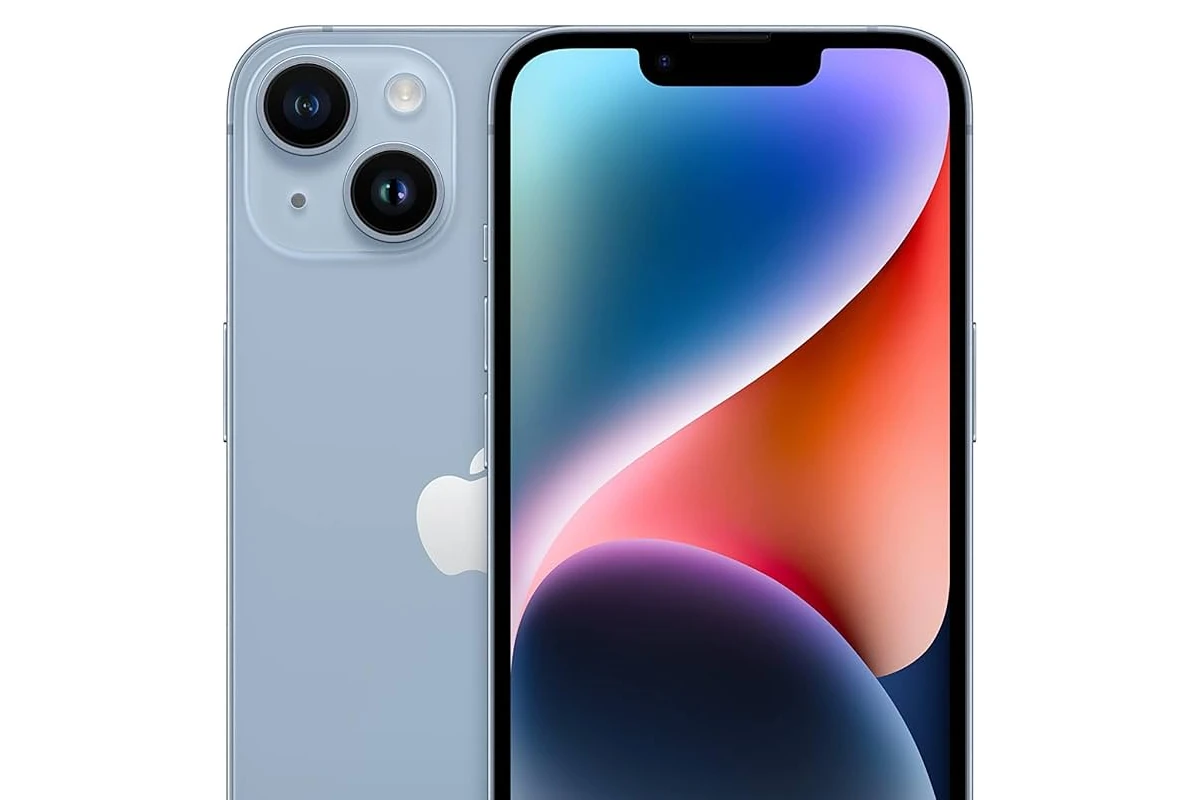
Factory resetting your iPhone 14 can solve performance issues, remove personal data before selling, or give you a fresh start. Whether you’re troubleshooting problems or preparing your device for a new owner, this guide walks you through how to factory reset an iPhone 14 safely and correctly.
What Does a Factory Reset Do?
A factory reset (also called “Erase All Content and Settings”) will:
- Delete all photos, videos, apps, and files
- Remove your Apple ID from the device
- Reset settings to default
- Turn off Find My iPhone
- Restore the iPhone to its original state
⚠️ Important: This process permanently erases your data unless you back it up first.
Before You Factory Reset Your iPhone 14
1. Back Up Your Data (Highly Recommended)
You can back up using iCloud or a Mac/PC.
Back Up with iCloud:
- Connect to Wi-Fi.
- Go to Settings.
- Tap your Apple ID (your name at the top).
- Tap iCloud → iCloud Backup.
- Tap Back Up Now.
Wait for the backup to complete.
Back Up with a Mac (macOS Catalina or later):
- Connect your iPhone to your Mac.
- Open Finder.
- Select your iPhone.
- Click Back Up Now.
Back Up with a Windows PC or Older Mac:
- Open iTunes.
- Connect your iPhone.
- Click the device icon.
- Choose Back Up Now.
2. Sign Out of Apple ID (If Selling or Giving Away)
If you’re selling or gifting your phone, sign out of iCloud to remove Activation Lock.
- Go to Settings.
- Tap your name.
- Scroll down and tap Sign Out.
- Enter your Apple ID password.
- Confirm.
Method 1: Factory Reset iPhone 14 Using Settings (Easiest Method)
This is the most common way.
Steps:
- Open Settings.
- Tap General.
- Scroll down and tap Transfer or Reset iPhone.
- Tap Erase All Content and Settings.
- Tap Continue.
- Enter your passcode if prompted.
- Confirm by tapping Erase iPhone.
Your iPhone will:
- Display the Apple logo
- Show a progress bar
- Restart once complete
The process typically takes a few minutes.
Method 2: Factory Reset iPhone 14 Without Passcode (Using Recovery Mode)
If you forgot your passcode, you’ll need a computer.
What You’ll Need:
- A Mac or Windows PC
- A Lightning cable
- Internet connection
Steps:
- Connect your iPhone to your computer.
- Put the iPhone 14 into Recovery Mode:
- Quickly press and release Volume Up
- Quickly press and release Volume Down
- Press and hold the Side button
- Keep holding until you see the recovery mode screen (cable + computer icon)
- On your computer:
- Finder (Mac) or iTunes (Windows) will detect the device.
- Choose Restore.
- Wait for the process to finish.
This will erase the device and install the latest version of iOS.
Method 3: Factory Reset Using iCloud (Remote Erase)
If your iPhone is lost or you no longer have it physically, you can erase it remotely.
Steps:
- Go to iCloud.com.
- Sign in with your Apple ID.
- Click Find iPhone.
- Select your iPhone 14.
- Click Erase iPhone.
- Confirm.
Once erased, the device will be removed from your account.
How Long Does a Factory Reset Take?
Typically:
- 2–10 minutes for the erase process
- Additional time if restoring from backup
If it takes longer than 30 minutes, restart and try again.
After the Factory Reset
Once complete, you’ll see the “Hello” setup screen, just like when the iPhone was brand new.
From here, you can:
- Set it up as new
- Restore from iCloud backup
- Restore from Mac/PC backup
- Transfer data from another iPhone
Common Questions
Will a factory reset remove viruses?
Yes. A factory reset removes malicious apps and corrupted files.
Does factory reset remove eSIM?
It may remove eSIM profiles. Contact your carrier if needed.
Can I reset without Apple ID password?
No. If Find My iPhone is enabled, you’ll need the Apple ID password due to Activation Lock.
Final Thoughts
Factory resetting your iPhone 14 is simple when you follow the correct steps. Just remember:
✅ Back up your data
✅ Sign out of iCloud if selling
✅ Use recovery mode if locked out
Whether you’re troubleshooting, upgrading, or passing it along, a factory reset ensures your device is clean and ready for its next chapter.
How To Factory Reset iPhone 14 With Buttons
Factory resetting an iPhone 14 with buttons can be a useful solution when your device encounters persistent issues or you need to erase all data before selling or giving it away. To factory reset your iPhone 14 using buttons, press and quickly release the Volume Up button, then the Volume Down button, and finally press and hold the Side button until the Apple logo appears. This method initiates a force restart, which can be helpful if your device is unresponsive.
For a complete factory reset that erases all content and settings, users can access the Settings app on their iPhone 14. Navigate to General > Transfer or Reset iPhone > Erase All Content and Settings. This process requires the device passcode and Apple ID password to proceed. It’s crucial to back up important data before performing a factory reset to avoid permanent loss of information.
In some cases, using iTunes or Finder on a computer may be necessary for resetting an iPhone 14. Connect the device to a computer, open iTunes or Finder, and select the option to restore the iPhone. This method can be particularly helpful if the device is stuck in recovery mode or experiencing software issues that prevent on-device resets.
Key Takeaways
- Factory resetting an iPhone 14 can be done through the Settings app or using button combinations
- Backing up data is essential before performing a factory reset to prevent data loss
- iTunes or Finder can be used for more complex reset situations or software issues
Preparing to Factory Reset Your iPhone 14
Before resetting your iPhone 14, take some essential steps to protect your data and ensure a smooth process. These preparations will help you avoid losing important information and make it easier to set up your device after the reset.
Backup Important Data
Connect your iPhone 14 to a stable Wi-Fi network. Open Settings and tap your name at the top. Select iCloud, then iCloud Backup. Tap “Back Up Now” to start the process. This saves your data to iCloud.
For a local backup, connect your iPhone to a computer with a USB cable. Open iTunes (on Windows) or Finder (on Mac). Select your device when it appears. Click “Back Up Now” to create a backup on your computer.
Check that the backup completed successfully. You can view your backups in iCloud settings or iTunes/Finder.
Disable Find My iPhone
Open the Settings app on your iPhone 14. Tap your name at the top of the screen. Select “Find My” from the list of options. Tap “Find My iPhone” and toggle the switch to turn it off.
You’ll need to enter your Apple ID password to confirm this action. This step is crucial because Find My iPhone must be disabled before you can erase your device.
If you skip this step, you might encounter issues during the reset process. Apple requires this for security reasons.
Sign Out of Apple ID
Go to Settings and tap your name at the top. Scroll to the bottom and tap “Sign Out”. You’ll be prompted to enter your Apple ID password.
Choose whether to keep a copy of your data on the iPhone. If you’ve already backed up, you can select “Sign Out” without keeping a copy.
Confirm your choice by tapping “Sign Out” again. This process may take a few minutes to complete. Once done, your Apple ID will be removed from the device.
Signing out ensures that your account is no longer linked to the iPhone. This is important for protecting your personal information and preventing issues with activation after the reset.
Factory Resetting Through Settings
The iPhone 14 offers a straightforward method to erase all content and return to factory settings using the device’s Settings app. This process removes personal data and prepares the phone for a new user or troubleshooting.
Step-by-Step Reset Process
Open the Settings app on the iPhone 14. Tap “General” and scroll down to select “Transfer or Reset iPhone.” Choose “Erase All Content and Settings” to begin the factory reset process.
The iPhone will ask for the device passcode. Enter it to proceed. If Screen Time is enabled, the phone will request that passcode as well.
Review the warning about data deletion. Tap “Continue” and select “Erase iPhone” to confirm. The reset process will start, which may take several minutes to complete.
After Resetting your iPhone
Once the reset finishes, the iPhone 14 will restart and display the “Hello” screen. This indicates the device has returned to its original factory state.
Users can now set up the iPhone 14 as new or restore from a backup. To set up as new, follow the on-screen prompts to select language, region, and Wi-Fi network.
For those who plan to sell or give away the device, stop at the “Hello” screen. The next owner can then complete the setup process with their own information.
Using iTunes or Finder to Restore iPhone
iTunes and Finder offer reliable methods to restore an iPhone 14 to factory settings. These tools provide a straightforward process for wiping all data and reinstalling the latest iOS version.
Restoring via iTunes
Connect the iPhone 14 to a computer with iTunes installed using a USB cable. Open iTunes and select the device icon. Click on the “Summary” tab and choose “Restore iPhone”. A prompt will appear asking for confirmation. Click “Restore” again to start the process.
iTunes will download the latest iOS software and install it on the iPhone. This may take several minutes. Keep the device connected until the process finishes. Once complete, the iPhone will restart and display the “Hello” setup screen.
If iTunes doesn’t recognize the device, put the iPhone into recovery mode. Press and quickly release the volume up button, then the volume down button. Hold the side button until the recovery mode screen appears.
Restoring via Finder on MacOS
For Macs running macOS Catalina or later, use Finder to restore the iPhone. Connect the iPhone to the Mac with a USB cable. Open a Finder window and select the iPhone under “Locations” in the sidebar.
Click “General” at the top of the window. Select “Restore iPhone” and confirm the action. Finder will erase all data and reinstall iOS. Keep the iPhone connected throughout the process.
If prompted, enter the device passcode or choose “Trust This Computer”. For encrypted backups, provide the backup password when asked. After restoration, the iPhone will restart and show the setup screen.
Troubleshooting Common Issues
Factory resetting an iPhone 14 can sometimes encounter obstacles. Knowing how to address these issues ensures a smooth reset process.
Resolving Update or Restore Errors
When attempting a factory reset, users may face update or restore errors. These often stem from connectivity problems or software glitches. To resolve:
- Check internet connection
- Update iTunes or Finder to the latest version
- Try a different USB cable and port
- Disable antivirus software temporarily
If errors persist, putting the iPhone 14 in recovery mode can help. This bypasses normal startup and allows for restoration:
- Connect iPhone to computer
- Press Volume Up, then Volume Down quickly
- Hold Side button until recovery screen appears
- Follow on-screen prompts to restore
Addressing Unresponsive iPhone 14 or Frozen Screen
An unresponsive or frozen iPhone 14 can prevent factory reset attempts. Force restarting the device often resolves this issue:
- Press and release Volume Up button
- Press and release Volume Down button
- Press and hold Side button until Apple logo appears
If force restart fails, try these steps:
- Charge the iPhone for at least 30 minutes
- Check for physical damage or debris in ports
- Reset network settings (Settings > General > Transfer or Reset iPhone > Reset > Reset Network Settings)
For persistent issues, contacting Apple Support or visiting an authorized service provider is recommended. They can diagnose hardware problems that may be causing the unresponsiveness.
Frequently Asked Questions
Resetting an iPhone 14 can be done through various methods, depending on the situation and user needs. Here are answers to common questions about resetting different iPhone 14 models.
How can I perform a hard reset on the iPhone 14 using physical buttons?
To hard reset an iPhone 14, press and quickly release the volume up button, then the volume down button. Next, press and hold the side button until the Apple logo appears. Release the side button. This process doesn’t erase data but can help with minor software issues.
What is the method to put an iPhone 14 into recovery mode?
Connect the iPhone 14 to a computer. Press and quickly release the volume up button, then the volume down button. Press and hold the side button until the recovery mode screen appears. The computer will detect the iPhone in recovery mode for further actions.
Is there a way to factory reset an iPhone 14 Pro Max without the passcode?
Without the passcode, a factory reset requires iTunes or Finder. Connect the iPhone to a computer with iTunes or Finder open. Put the iPhone into recovery mode. Choose the “Restore” option in iTunes or Finder. This erases all data and settings on the device.
What steps should be taken to reset an iPhone 14 when the hard reset function is not working?
If a hard reset doesn’t work, try a forced restart. If that fails, connect the iPhone to a computer and use iTunes or Finder to restore the device. As a last resort, contact Apple Support for further assistance or potential hardware issues.
How can I factory reset an iPhone 14 without using a passcode or computer?
A factory reset without a passcode or computer is not possible for security reasons. iPhone 14 requires either the passcode to erase through Settings or a computer with iTunes/Finder to reset the device in recovery mode.
What is the procedure for a factory reset on an iPhone 13 using the buttons?
The iPhone 13 doesn’t have a direct factory reset method using only buttons. To reset, go to Settings > General > Transfer or Reset iPhone > Erase All Content and Settings. Enter the passcode when prompted. This process erases all data on the device.