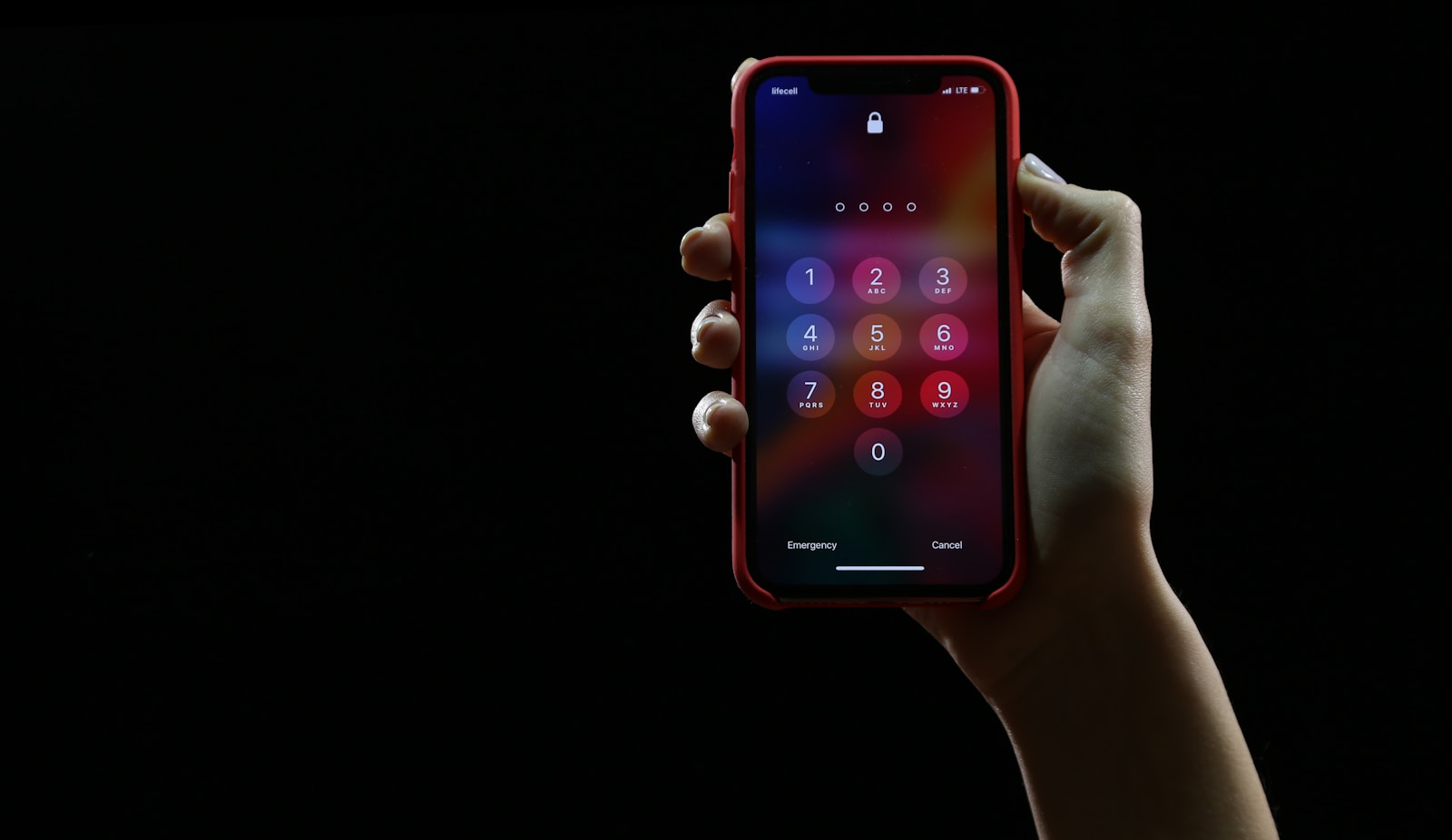
Sharing passwords securely with friends and family has always been a challenge, but Apple has made this process much easier in recent iOS updates. Gone are the days of texting sensitive login information or writing passwords on sticky notes. iOS now offers built-in features that let you share passwords securely with trusted contacts through the dedicated Passwords app, allowing for simple yet secure password management across your trusted circle.
With iOS 17 and newer versions, users can create shared password groups that make it easy to share login credentials with family members, close friends, or colleagues. This system works through iCloud Keychain, ensuring that your shared passwords remain encrypted and protected while being conveniently accessible to those who need them. You can also quickly share individual passwords using AirDrop for one-time sharing needs.
How to Share Passwords in iOS
Apple makes it easy—and secure—to share passwords with trusted people using iOS. Whether you want to share a Wi‑Fi password, an app login, or a website password, iOS provides built‑in tools that keep your information protected.
This guide walks you through all the ways to share passwords on an iPhone.
What You Need Before Sharing Passwords
Before you begin, make sure:
- Both devices are running iOS 16 or later (some features require iOS 17+)
- Both people are saved in each other’s Contacts
- iCloud Keychain is enabled
- You are signed in with your Apple ID
- Devices are nearby (for some sharing methods)
- Bluetooth and Wi‑Fi are turned on
To check iCloud Keychain: Settings → [Your Name] → iCloud → Passwords & Keychain
Method 1: Share a Password from the Passwords App (iOS 17+)
This is the most flexible way to share a saved password.
Steps:
- Open Settings
- Tap Passwords
- Authenticate with Face ID, Touch ID, or passcode
- Select the website or app you want to share
- Tap Share Password
- Choose a contact
- Confirm sharing
✅ The recipient can save the password directly to their Keychain
✅ Passwords are shared using end‑to‑end encryption
Method 2: Share Passwords Using Family Password Sharing (iOS 17+)
Apple allows families to share passwords safely using Shared Password Groups.
How to Set It Up:
- Go to Settings → Passwords
- Tap Shared Passwords
- Tap New Group
- Name the group
- Add trusted contacts (usually Family Sharing members)
- Choose which passwords to share
✅ Great for streaming services, utilities, and household logins
✅ Members can add or remove passwords you allow
✅ You can stop sharing at any time
Method 3: Share a Wi‑Fi Password Automatically
This is the easiest and fastest password‑sharing option.
Requirements:
- Both devices nearby
- Wi‑Fi and Bluetooth enabled
- Both Apple IDs saved in Contacts
Steps:
- Ask the other person to select your Wi‑Fi network
- Unlock your iPhone
- Tap Share Password when prompted
✅ No typing required
✅ Password never appears on screen
Method 4: Use AirDrop to Share a Password (Limited Use)
AirDrop can be used indirectly for sharing access info, but not recommended for actual passwords.
⚠️ Apple does not allow plaintext password sharing via AirDrop for security reasons.
✅ Safer alternative:
- Share access using Passwords app
- Or add someone to a Shared Password Group
Method 5: Share a Password Manually (Not Recommended)
If you must share a password manually:
- Use Messages with end‑to‑end encryption
- Avoid screenshots or notes
- Delete the message after it’s saved
⚠️ This method is less secure and should only be a last resort.
How to Stop Sharing a Password
To revoke access:
- Open Settings → Passwords
- Select the shared password or group
- Remove the person or stop sharing
Changes take effect immediately.
Security Tips for Sharing Passwords
- Share only with trusted contacts
- Use strong, unique passwords
- Enable two‑factor authentication
- Review shared passwords regularly
- Avoid sharing work or banking passwords unless required
Troubleshooting Password Sharing Issues
Can’t see the share option?
- Update to the latest iOS
- Make sure iCloud Keychain is on
Recipient didn’t receive it?
- Check contact email/phone matches their Apple ID
- Ensure both devices are online
Wi‑Fi sharing not working?
- Confirm Bluetooth is enabled
- Restart both devices
Key Takeaways
- iOS provides secure password sharing through dedicated password groups in the Passwords app, eliminating risky sharing methods like text messages.
- Users can quickly share individual passwords via AirDrop or manage ongoing access through password groups that sync across devices.
- All shared passwords remain encrypted through iCloud Keychain, maintaining security while improving convenience for families and teams.
Understanding Password Security in iOS
iOS devices offer multiple layers of protection for your passwords, ensuring your data stays safe while making sharing convenient. Apple has built robust systems that balance security and usability through biometric authentication, cloud synchronization, and modern password alternatives.
The Role of iCloud Keychain
iCloud Keychain forms the backbone of Apple’s password management system. This feature securely stores passwords, credit card information, and Wi-Fi credentials across all your Apple devices. When enabled, your passwords automatically sync between your iPhone, iPad, and Mac.
To use iCloud Keychain for password sharing, you must first enable it by going to Settings > Your Name > iCloud. The data in iCloud Keychain is encrypted end-to-end, meaning only devices with your Apple ID can access the information.
In iOS 17 and later, Apple expanded iCloud Keychain capabilities to allow sharing passwords with friends and family. This feature lets you create password groups and manage who has access to specific credentials.
Face ID and Touch ID
Biometric authentication adds a crucial security layer to password management on iOS. Instead of typing your master password each time, you can use your fingerprint or face to access stored credentials.
Touch ID uses your fingerprint to verify your identity, while Face ID scans your facial features. Both technologies store biometric data securely in the device’s Secure Enclave, not in iCloud.
When sharing passwords in iOS, these biometric systems verify your identity before allowing access to sensitive information. This prevents unauthorized users from sharing your passwords even if they have your device.
Important biometric security features:
- Adaptive learning (Face ID improves recognition over time)
- Attention awareness (requires your eyes to be open)
- Local processing (biometric data never leaves your device)
Passkeys as a Secure Alternative
Passkeys represent Apple’s push toward a passwordless future. These digital credentials are more secure than traditional passwords because they can’t be phished or leaked in data breaches.
Apple Passwords in iOS 18 enhances passkey support, allowing users to create and manage these secure alternatives. Passkeys use public key cryptography—storing a private key on your device and a public key on the website’s server.
When you create a passkey, you’ll use Face ID or Touch ID to authenticate. No password is ever created or stored. Passkeys can be shared with family members through password groups, making them both secure and convenient.
Two-factor authentication further strengthens passkeys by requiring verification through another device or method before completing sign-in. This multi-layered approach makes iOS password security robust against modern threats.
Enabling Password Sharing Features
Before sharing passwords with friends and family, you need to set up several security features on your iPhone. These settings ensure that your shared passwords remain protected while allowing convenient access for trusted individuals.
Configuring iCloud Keychain
iCloud Keychain is the foundation of password sharing in iOS. To enable it, go to Settings > [your name] > iCloud > Passwords and Keychain, then toggle on “Sync this iPhone.” This setting allows your passwords to sync across all your Apple devices.
Make sure your Apple ID has two-factor authentication enabled for added security. Without this setup, shared password groups won’t work properly.
For iOS 17 and later, the system automatically creates a secure channel between devices for password sharing. Earlier versions have more limited sharing capabilities, so updating to the latest iOS is recommended if you plan to use this feature extensively.
To verify iCloud Keychain is working properly, check for the small key icon next to your passwords in the Settings app.
Setting Up Face ID and Touch ID for Authentication
Biometric authentication adds an essential layer of security when accessing or sharing passwords. To configure Face ID, navigate to Settings > Face ID & Passcode. For devices with Touch ID, go to Settings > Touch ID & Passcode instead.
Make sure to toggle on “Passwords” under the “Use Face ID For” or “Use Touch ID For” section. This allows quick authentication when accessing your password sharing groups.
When setting up Face ID, follow the on-screen instructions to complete a face scan. For Touch ID, you’ll need to register one or more fingerprints by placing your finger on the home button repeatedly.
If biometric authentication fails, the system will fall back to your device passcode as a backup method.
Establishing a Device Passcode
A strong device passcode is crucial for password sharing security. To set or change your passcode, go to Settings > Face ID & Passcode or Touch ID & Passcode, then select “Change Passcode” or “Turn Passcode On.”
Apple recommends using at least a 6-digit passcode, though you can choose a more complex alphanumeric code by tapping “Passcode Options” during setup. Avoid easily guessed sequences like birthdays or “123456.”
Your passcode serves as the master key to your shared passwords when biometric methods aren’t available. It’s required after device restarts and after multiple failed biometric authentication attempts.
Remember to never share your device passcode with anyone, even those you trust with your passwords. The passcode provides complete access to your device and should remain private.
Sharing Passwords Securely in iOS
iOS offers several secure methods to share passwords with family, friends, and colleagues while maintaining proper security protocols. Apple has built robust sharing features directly into the iOS password management system.
Utilizing AirDrop for Password Sharing
AirDrop provides one of the simplest ways to share individual passwords with nearby contacts. Users can open the dedicated Passwords app on their iPhone and navigate to the account they wish to share.
After selecting the desired account, users tap the AirDrop button and select the recipient’s device from the displayed options. The process utilizes end-to-end encryption to ensure the password remains secure during transfer.
Key benefits of using AirDrop for password sharing include:
- No need for messaging apps or email
- Works directly between Apple devices
- Eliminates the risk of sending passwords via insecure methods
- Requires physical proximity for added security
The recipient will receive a notification allowing them to accept and save the password to their own device.
Creating Shared Password Groups
For ongoing password sharing needs, iOS allows users to create password groups specifically designed for sharing with trusted contacts. This feature helps families and teams manage shared accounts efficiently.
To set up a shared password group:
- Open the Settings app
- Navigate to Passwords
- Select the option to create a new group
- Name the group appropriately (like “Family Subscriptions” or “Work Accounts”)
- Add the desired passwords to the group
Users can specify which passwords belong in which groups and control exactly who has access. This granular control allows for sharing only specific passwords rather than providing access to an entire password vault.
Password groups can be modified at any time, allowing users to add or remove shared passwords as needs change.
Managing Family Passwords
The Family Passwords feature simplifies sharing login credentials with household members. This is particularly useful for streaming services, utility accounts, and shared subscriptions.
To set up Family Passwords:
- Open Settings and tap Passwords
- Look for the Family Passwords section
- Select “Get Started” and create a descriptive group name
- Choose which passwords to include
- Invite family members via Messages
Once established, any changes to these passwords automatically sync to all group members. This eliminates the need to manually notify everyone when credentials change.
iOS includes security measures that prevent recipients from sharing the passwords with others outside the designated group. The system also maintains a log of who accessed what passwords for transparency.
Transferring Passwords Between Apple Devices
Apple offers several convenient methods to move passwords between your iPhone, iPad, Mac, and other devices. These approaches ensure you can access your login credentials wherever you need them without manually typing them each time.
Syncing Across Devices with iCloud Keychain
iCloud Keychain provides a seamless way to sync passwords between iOS and macOS. To enable this feature, users should go to Settings > Apple ID > iCloud on their iPhone or iPad, then toggle on Keychain. On Mac computers, this option is found in System Settings > Apple ID > iCloud.
Once activated, passwords saved on one device automatically appear on all other Apple devices signed in with the same Apple ID. This synchronization happens securely in the background through end-to-end encryption.
For verification, users can check if synchronization is working by opening the Passwords app (iOS 16 and later) or going to Settings > Passwords on older devices. All synced credentials should appear in this list.
Using Password Managers for Transfer
When iCloud Keychain isn’t preferred, third-party password managers provide alternative methods for transferring passwords between Apple devices. Popular options include 1Password, LastPass, Dashlane, and Bitwarden.
These applications offer dedicated iOS apps and Safari extensions that integrate with Apple’s password autofill system. Users can install the password manager on all their devices and sign in with the same account to access their password vault everywhere.
Most password managers also provide additional features beyond basic password syncing:
- Secure sharing options for families or teams
- Cross-platform compatibility with non-Apple devices
- Advanced security features like biometric authentication
- Password health monitoring to identify weak or compromised credentials
For those requiring more specialized features or cross-platform functionality, these third-party solutions complement Apple’s built-in password management capabilities.
Working with Third-Party Password Managers
While Apple’s built-in password management system works well, many iOS users prefer third-party password managers for additional features or cross-platform compatibility. These apps offer enhanced security options and can work seamlessly within the iOS ecosystem.
Selecting a Password Manager
When choosing a password manager for iOS, users should consider several key factors. Security features like encryption methods and two-factor authentication should be top priority.
Popular options include:
- 1Password: Known for strong security and family sharing plans
- Bitwarden: Offers a robust free tier with unlimited passwords
- LastPass: Features an intuitive interface with emergency access
- Dashlane: Includes VPN service and dark web monitoring
Cross-platform availability is important for those who use multiple operating systems. Most leading password managers work across iOS, Android, Windows, and macOS.
Price is another consideration, with subscription models ranging from $2-$5 monthly. Many providers offer free trials to test functionality before committing.
Integrating Password Managers with iOS
iOS 17 makes using third-party password managers easier than ever. After installing a password manager app, users need to enable it in the Settings app.
To set up integration:
- Open Settings → Passwords → AutoFill Passwords
- Toggle on “AutoFill Passwords”
- Select your preferred password manager
This allows the password manager to appear in the iOS keyboard when signing into apps and websites. Most password managers also offer browser extensions for Safari.
For enhanced security, many password managers can be unlocked using Face ID or Touch ID. This combines convenience with robust protection.
Third-party options offer features Apple’s Keychain doesn’t have, such as password health reports and breach monitoring. They can also share credentials between iOS and non-Apple devices, something that requires third-party solutions.
Sharing Wi-Fi Passwords with Ease
Apple has made sharing Wi-Fi passwords incredibly simple for iPhone users. This feature eliminates the need to remember complex passwords or awkwardly read them aloud to friends.
To share a Wi-Fi password between Apple devices, both need to have Wi-Fi and Bluetooth turned on. The person sharing must have the recipient saved in their Contacts app.
Basic sharing steps:
- Connect your iPhone to the Wi-Fi network
- Have the recipient select the same network on their device
- Keep both devices close together
- When prompted, tap “Share Password” on your screen
This password sharing feature works seamlessly between iPhones, iPads, and Macs.
In iOS 17, Apple introduced additional options for managing Wi-Fi passwords. Users can now access all their saved Wi-Fi passwords through the dedicated Passwords app.
The process requires no third-party apps and protects the security of your network. The password is transferred encrypted, never appearing on either screen.
For those helping guests connect, this method is much more convenient than dictating complex passwords. Both devices must be running relatively recent iOS versions for optimal compatibility.
Remember that both users need Apple ID accounts, and they should be signed in to iCloud for the feature to work properly.
Accessing Shared Passwords on Different Platforms
Apple’s password sharing feature works seamlessly across devices in the Apple ecosystem. This functionality allows users to access their shared passwords regardless of which Apple device they’re using, making login information available whenever needed.
Using Passwords on iPadOS
On iPads running iPadOS 17, accessing shared passwords follows a similar process to iOS devices. Users can navigate to Settings > Passwords where they’ll find their shared password groups displayed prominently.
These groups contain all the passwords that have been shared with family members or friends. To view the specific passwords within a group, users simply need to tap on the group name.
When accessing a website that requires login credentials, iPadOS will automatically suggest the relevant password from shared groups. This integration makes browsing secure websites effortless even when using shared accounts.
iPadOS also allows users to edit or remove passwords from shared groups directly from the Settings app, providing complete control over shared credentials.
Cross-Platform Password Syncing
Apple’s password syncing works across multiple platforms including iPhones, iPads, and Mac computers. All shared passwords automatically sync between devices using the same Apple ID through iCloud.
This syncing happens in the background, requiring no user intervention after the initial setup. When a user adds a new password to a shared group on their iPhone, it becomes immediately available on their iPad and Mac.
For optimal cross-platform functionality, users should ensure that:
- iCloud Keychain is enabled on all devices
- All devices are signed in with the same Apple ID
- Two-factor authentication is activated for the Apple ID
Password changes made on any device will update across all platforms, maintaining consistency throughout the Apple ecosystem. This seamless integration makes managing shared credentials convenient regardless of which device is being used.
Enhancing Security with Two-Factor Authentication
When sharing passwords on iOS devices, adding an extra layer of security is essential. Two-factor authentication (2FA) strengthens access security by requiring additional verification beyond just a username and password.
Apple’s iOS 17 makes setting up 2FA straightforward. Users can activate this feature by going to Settings > account name > Sign-In & Security and tapping “Turn On Two-Factor Authentication.” Following the on-screen prompts completes the setup.
The beauty of Apple’s implementation is that 2FA settings sync across devices. This means when a user enables 2FA on their iPhone, the same protection automatically extends to their iPad and other Apple devices connected to the same iCloud account.
Adding trusted phone numbers enhances 2FA further. To add a number, users should:
- Go to Settings > account name > Passwords & Security
- Tap Edit next to Trusted Phone Numbers
- Select “Add a Trusted Phone Number”
This process ensures that even if someone obtains a shared password, they cannot access accounts without the secondary verification code.
When sharing passwords with trusted contacts, 2FA provides confidence that even if the password information is compromised, unauthorized access remains difficult. The verification codes sent to trusted devices create a significant barrier against potential intruders.
For maximum security when sharing passwords in iOS 17, combining password sharing features with active 2FA creates a robust security system that protects sensitive information.
Frequently Asked Questions
Sharing passwords on iOS devices is simple but sometimes raises questions about security and specific procedures. Here are answers to common questions about password sharing features on Apple devices.
What are the steps to share Wi-Fi passwords between Apple devices?
To share Wi-Fi passwords between Apple devices, both devices need to be nearby with Bluetooth turned on. The device that knows the password must be unlocked.
The person receiving the password should select the Wi-Fi network on their device. A prompt will appear on the other device asking to share the password. Tap “Share Password” and it will transfer automatically.
This feature requires both users to have each other in their contacts and both devices must be using iOS 11 or later.
How can I securely share passwords with family members using Apple devices?
iOS 17 introduced a dedicated family password sharing feature. Users can create a password sharing group and give it a name like “Family” or “Household.”
To set this up, go to Settings > Passwords > Family Passwords and tap “Get Started.” Select which passwords to share and choose family members to invite.
All shared passwords are protected by end-to-end encryption, ensuring only authorized family members can access them.
Where can I find the setting to disable password sharing on iOS?
To disable password sharing on iOS, open Settings and tap on your Apple ID at the top. Select iCloud, then scroll down to Passwords & Keychain.
Toggle off “iCloud Keychain” to stop syncing passwords across devices. For family password sharing, go to Settings > Passwords, select the shared password group, and remove yourself or delete the group entirely.
Individual shared passwords can also be removed from groups without disabling the entire feature.
What is the procedure for sending passwords from one iPhone to another?
To send a specific password from one iPhone to another, open Settings > Passwords and select the password you want to share. Tap the share icon (square with arrow).
Choose how you want to send it—via AirDrop, Messages, or Mail. For AirDrop, the recipient’s device will appear if it’s nearby with AirDrop enabled.
For family sharing in iOS 17, you can simply add passwords to your Family Passwords group instead of sending them individually.
How can I stop automatic password sharing between my Apple devices?
To stop automatic password sharing between your own Apple devices, disable iCloud Keychain. Go to Settings > your Apple ID > iCloud > Passwords & Keychain.
Toggle off iCloud Keychain. This prevents passwords from automatically syncing across your devices.
Remember that turning this off means new passwords saved on one device won’t appear on your other devices. You’ll need to manually enter them on each device.
Is it possible to manage shared passwords across multiple devices using Apple’s password manager?
Yes, Apple’s password manager (iCloud Keychain) can manage shared passwords across multiple devices. All devices signed into the same Apple ID automatically sync passwords.
For iOS 17 users, the password sharing feature allows for more granular control. Users can move passwords between personal and family groups without sharing their entire password library.
Recent updates have improved functionality for users with large password collections, making it easier to organize and share selected credentials while maintaining security.